Software updates are always important to fix security flaws and performance issues identified in systems, as well as to bring new features and support for new technologies, letting you get the most out of your equipment, whether it is a computer, a phone, or… a MikroTik router!

MikroTik routers run their own operating system, RouterOS, which ensures that all of them can be managed by WinBox and have roughly the same features – routing, firewall, bandwidth management, wireless access point, VPN server, and much more.
Every MikroTik router has two pieces of software that can be updated: the firmware, which is specific to each device, and the operating system, RouterOS, which is common to all devices. The recommendation is to update the operating system first and then the firmware. Let’s see how to do both.
For future reference, I’m using the latest version of WinBox (v4.5), installed on Linux Kamarada from the AUR. It should also be possible to do these updates through MikroTik’s web interface, the paths and screens are similar.
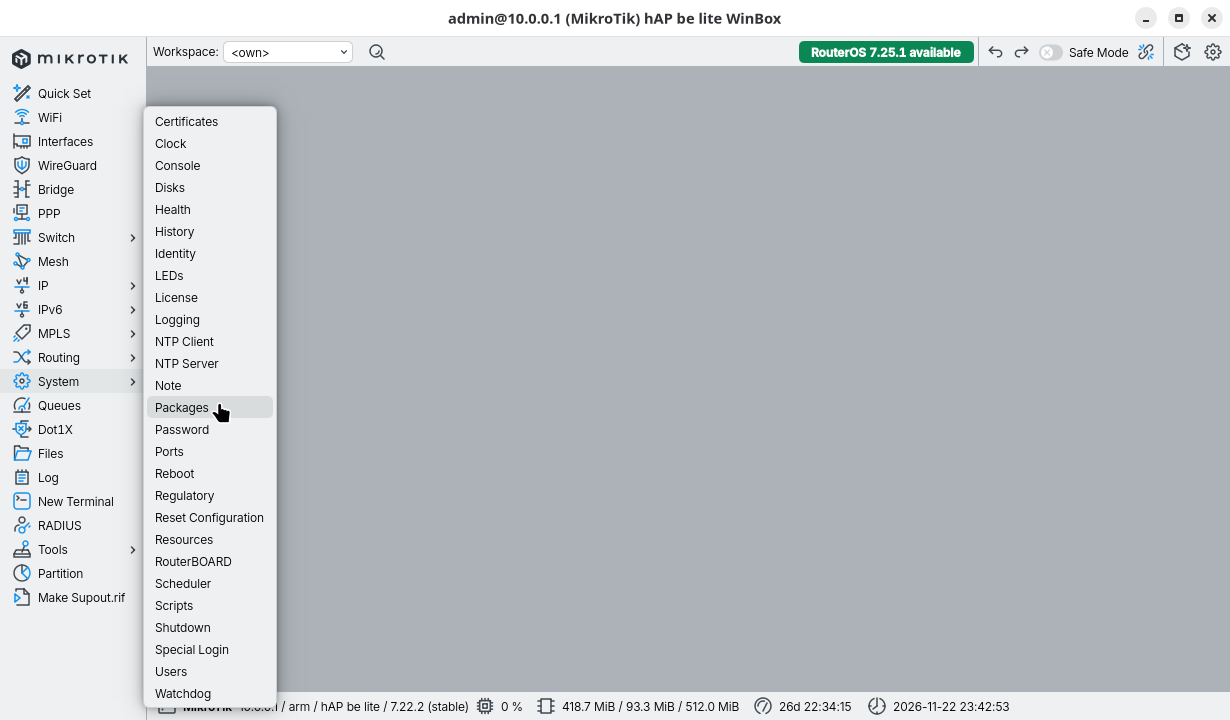
To update RouterOS, open WinBox and go to System > Packages:
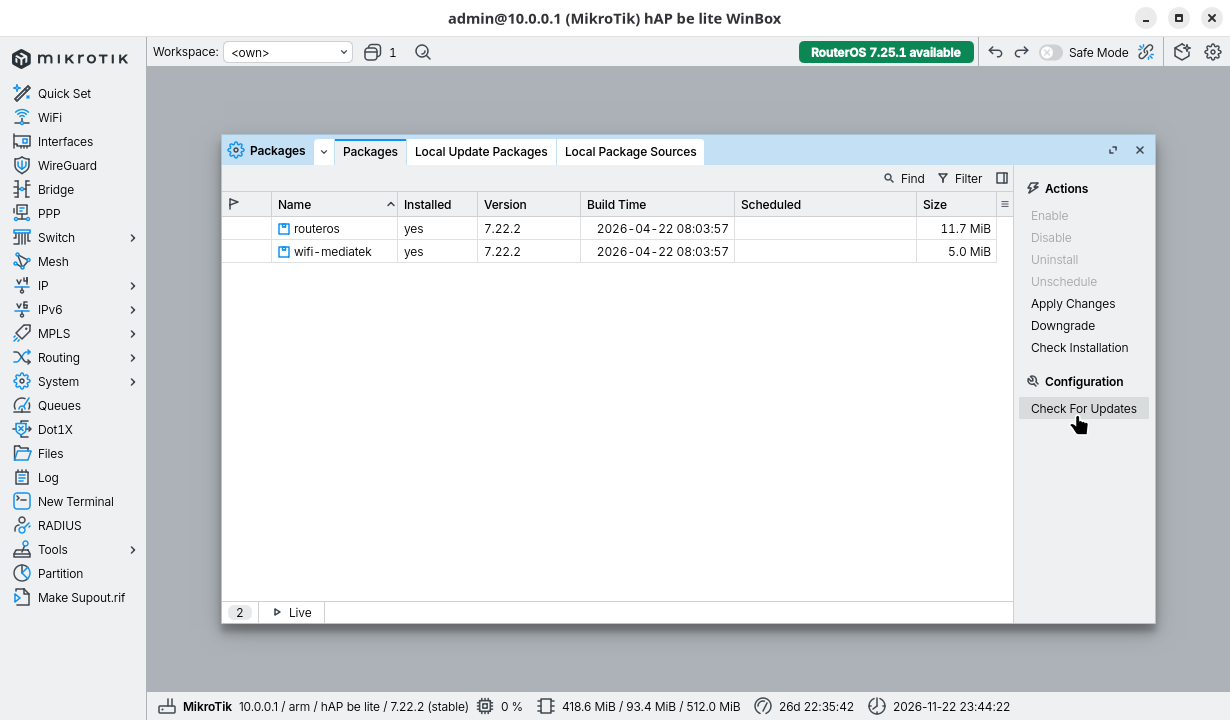
In the Packages window, click Check For Updates:
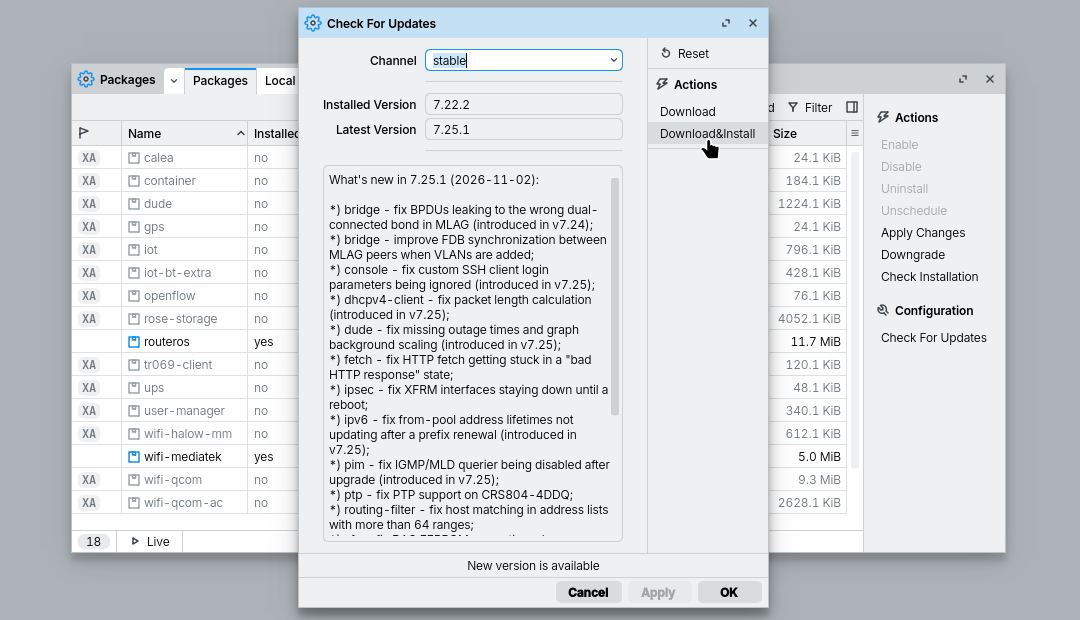
Click Download&Install:
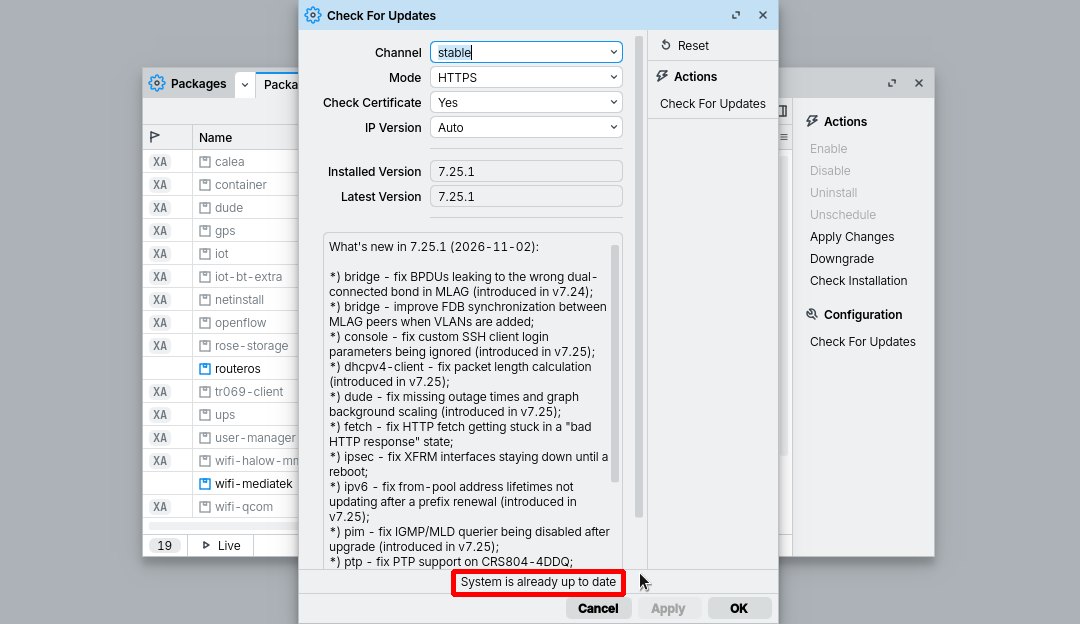
The MikroTik router downloads and installs the update and restarts. While this happens, WinBox will be disconnected. When the MikroTik finishes restarting, WinBox will reconnect and the Check For Updates window will show System is already up to date:
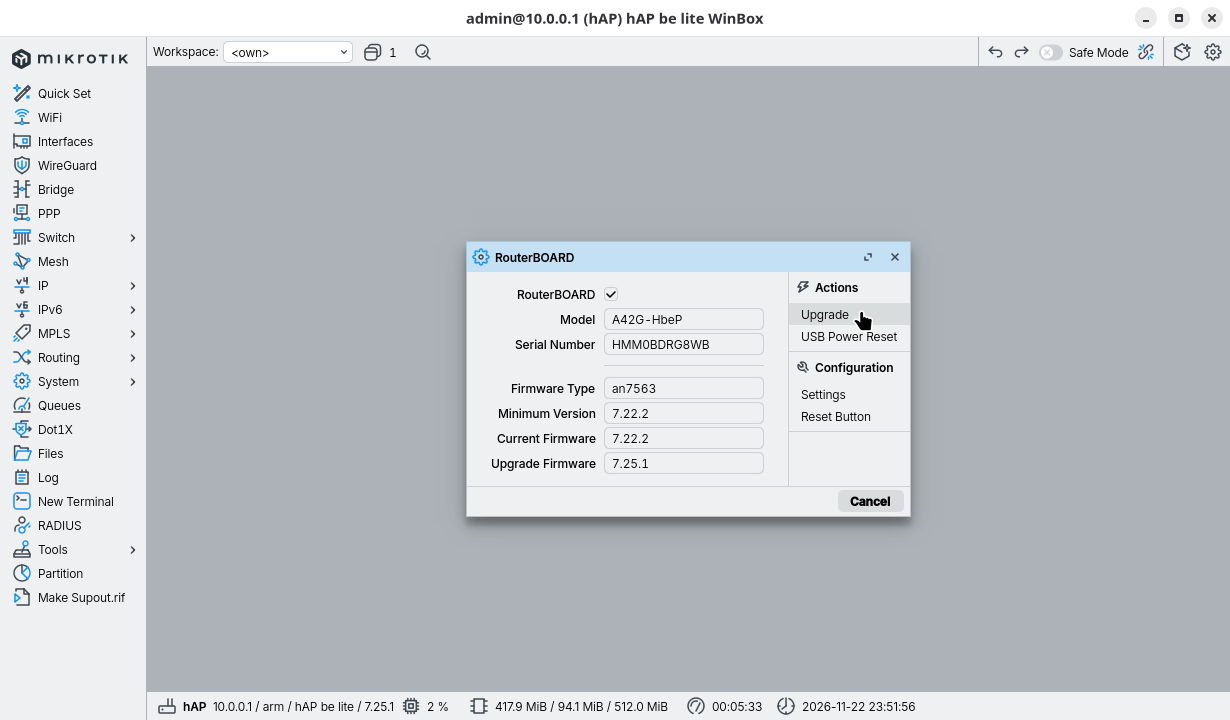
Once the operating system is updated, next we need to update the MikroTik’s firmware. To do that, go to System > RouterBOARD and click Upgrade:
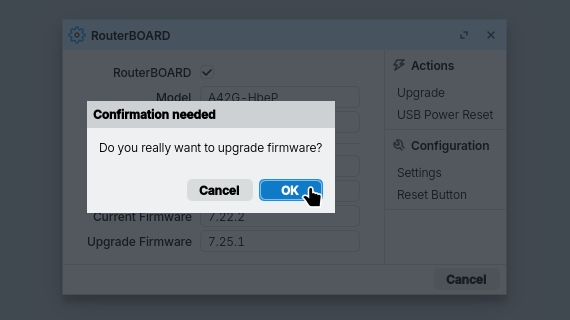
A confirmation window asks: Do you really want to upgrade firmware? Confirm by clicking OK:
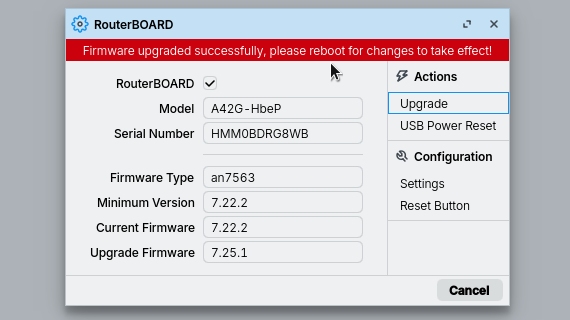
The RouterBOARD window now shows that the firmware was successfully updated and asks you to reboot to apply the changes:
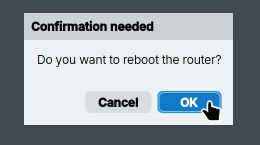
To reboot (turn off and on) the router, go to System > Reboot. A confirmation window asks: Do you want to reboot the router? Confirm by clicking OK:
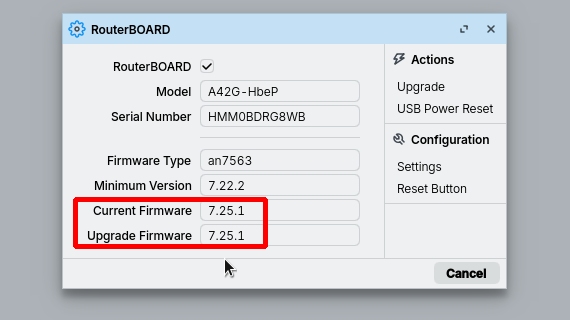
The router reboots and, while this happens, WinBox is disconnected. When the MikroTik finishes rebooting, if you reconnect WinBox and go back to System > RouterBOARD, you’ll see that the versions shown in Current Firmware and Upgrade Firmware match, indicating that the firmware is up to date:
Here I showed the easiest and most common way to update MikroTik’s software, but in the official documentation you can find other options, such as downloading the update using your computer and sending it to the router via FTP: