Between 2016 and 2017, I worked as a network analyst and was introduced to equipment made by MikroTik, a manufacturer of networking devices such as switches, routers, antennas, etc. MikroTik is probably best known for its RouterBOARD line of routers. But I got excited when I found out they also had a home line, and I soon bought a MikroTik router for myself.
From time to time I upgrade my home router, and I did that recently, so I decided to take the opportunity to set it up from scratch and write some tutorials showing its features.
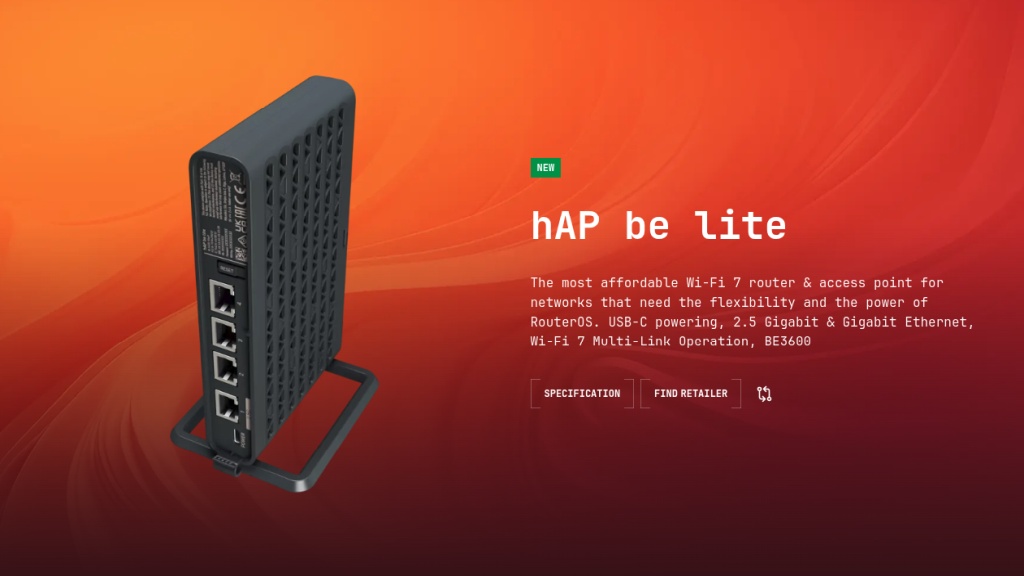
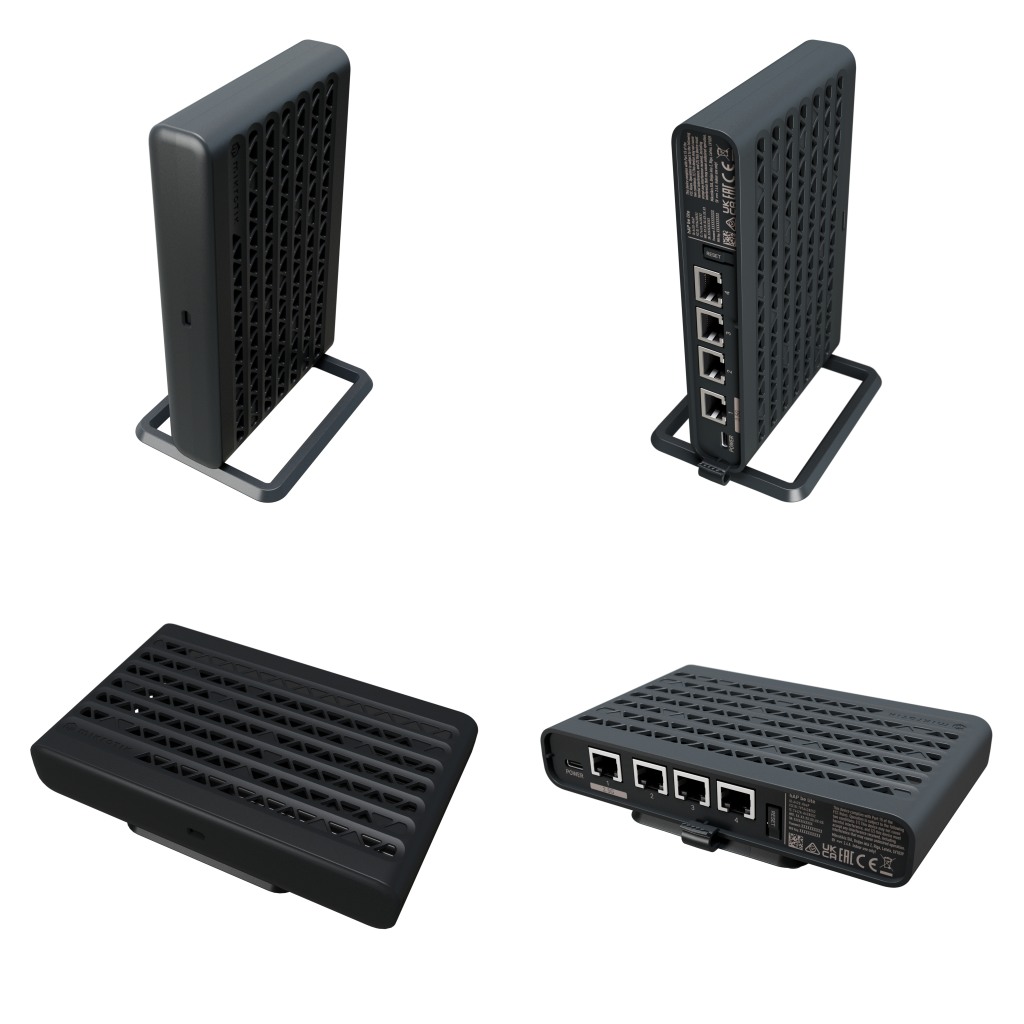
The MikroTik hAP be lite is a home router and wireless access point. It provides 4 Ethernet ports (one 2.5 Gigabit and three Gigabit ports) and a dual-band Wi-Fi 7 (802.11be) wireless network, working on both the 2.4GHz and 5GHz frequencies at the same time. It is powered through a USB-C port, which makes it easy to power it from a common phone charger or even a power bank.
Wi-Fi 7 is the latest generation of the Wi-Fi standard and is aimed at performance: the hAP be lite reaches up to 688Mbps on 2.4GHz and up to 2882Mbps on 5GHz. It also supports Multi-Link Operation (MLO), which allows compatible devices to use both frequencies simultaneously.
Besides higher speed, the 5GHz frequency also means less interference, both because fewer devices use it (today, for instance, cordless phones, microwaves and Bluetooth devices compete with Wi-Fi for the 2.4GHz frequency) and because of the shorter range of 5GHz networks (the wavelength gets shorter as the frequency increases; in practice, this means that if your Wi-Fi and your neighbor’s both transmit at 5GHz, it’s less likely that they invade each other’s homes).
The MikroTik comes configured out of the box, so you can simply plug in the cables and start using the Wi-Fi network. Of course, it’s still recommended to at least change the Wi-Fi password and the password for managing the MikroTik itself.
This is the perfect router for the nerd who wants to configure and monitor every little detail of their home network!
For these tutorials, I’m going to use Linux Kamarada, but note that you can configure the MikroTik router using Windows, macOS, or other operating systems, even a smartphone or tablet, because it has a web interface and can be configured from the browser.
Turning on the MikroTik for the first time
The MikroTik has only a few connections: using an Ethernet network cable, connect port 1 of the MikroTik to your ISP’s modem. Also connect the power adapter to the MikroTik’s USB-C port and to a power source (such as a wall outlet, a power strip, or a UPS).
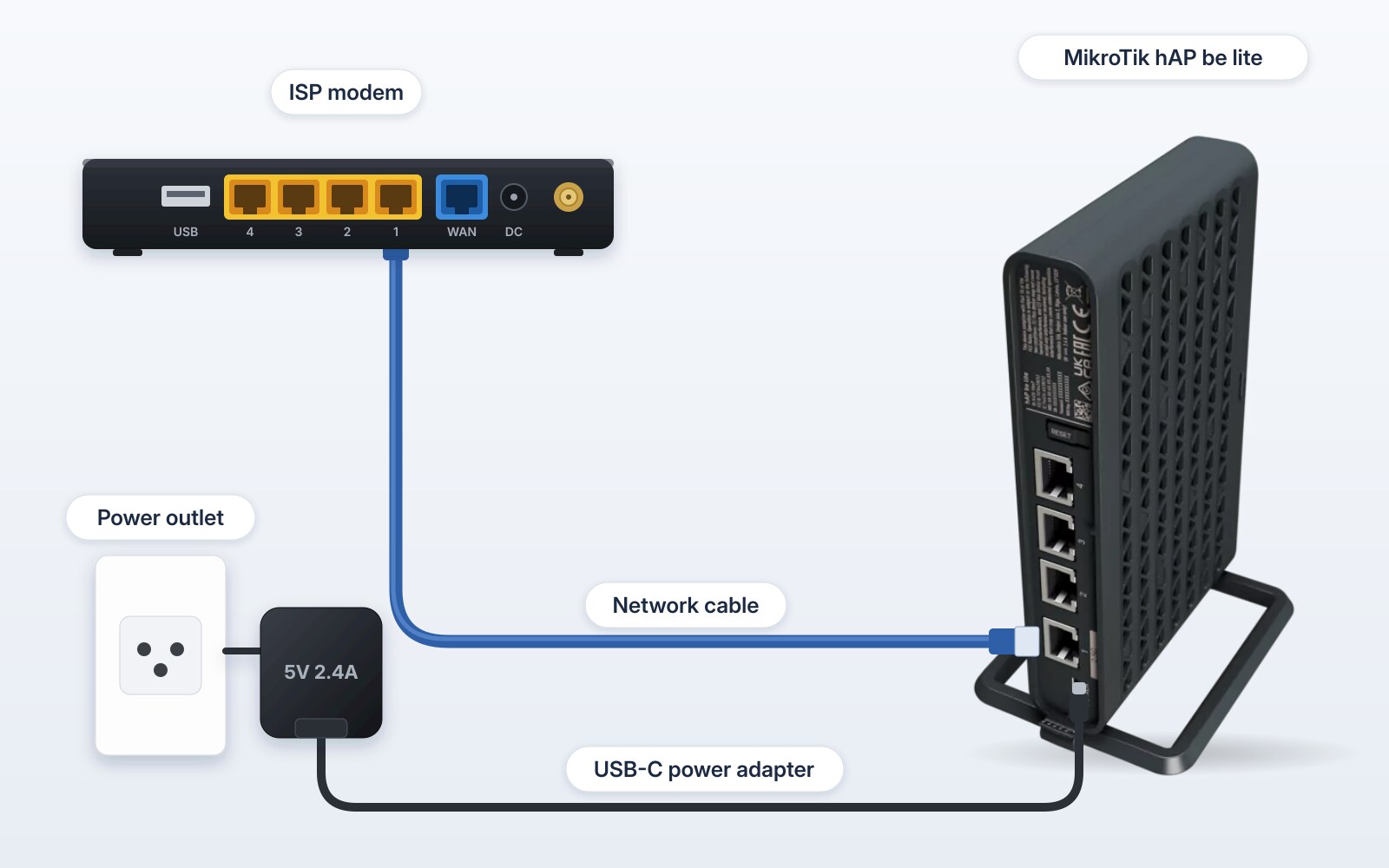
Note that the MikroTik doesn’t have a power button. So, as soon as you plug in the power adapter, it turns on. If you ever need to turn it off, just unplug the power adapter.
Basic settings
After booting for a few seconds, the MikroTik already provides a Wi-Fi network.
Open your system’s Wi-Fi settings and connect to the MikroTik network:
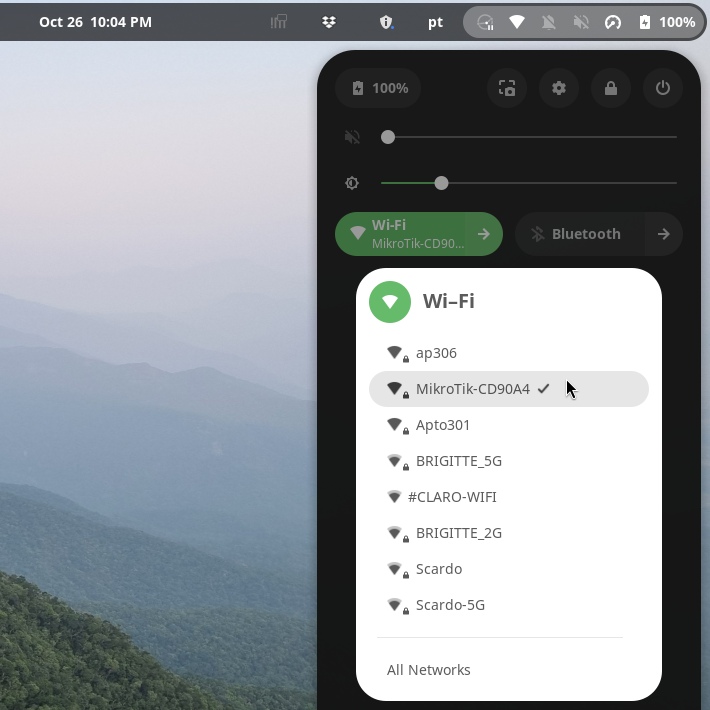
The network name is MikroTik- followed by the last digits of the router’s MAC address. Unlike older models, which came with an open network, newer MikroTik devices come with a password-protected Wi-Fi network out of the box. The Wi-Fi password, as well as the password for the MikroTik’s management, are printed on the device.
Once connected to the Wi-Fi network, note that you can already access the Internet. With the factory settings, the MikroTik gives your computer an IP address in the 192.168.88.0/24 network, and the default IP address of the MikroTik itself is 192.168.88.1.
But we don’t want to keep the default passwords, which anyone with physical access to the device can see. Let’s adjust some basic settings of the MikroTik. To do that, we’re going to use its web interface.
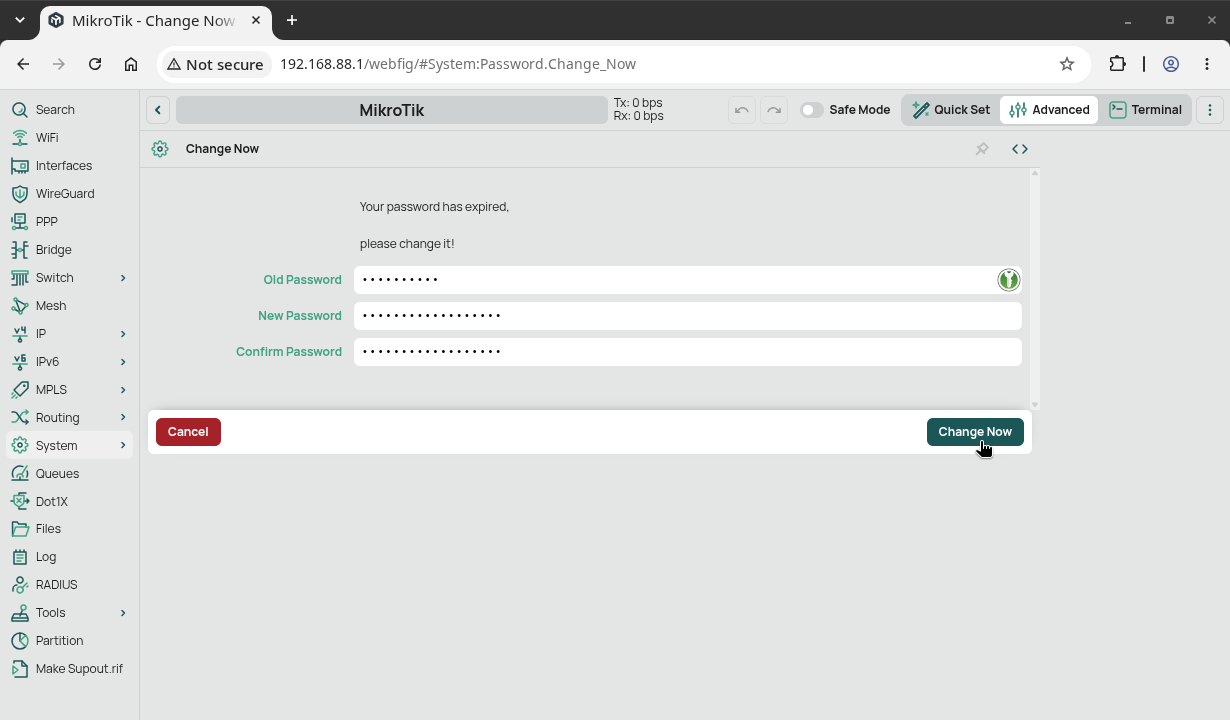
Open the browser and go to 192.168.88.1. Log in with the user admin and the password printed on the router. Upon first access, the router itself asks to change the management password, so do it:
Then, you are redirected to the Quick Set screen:
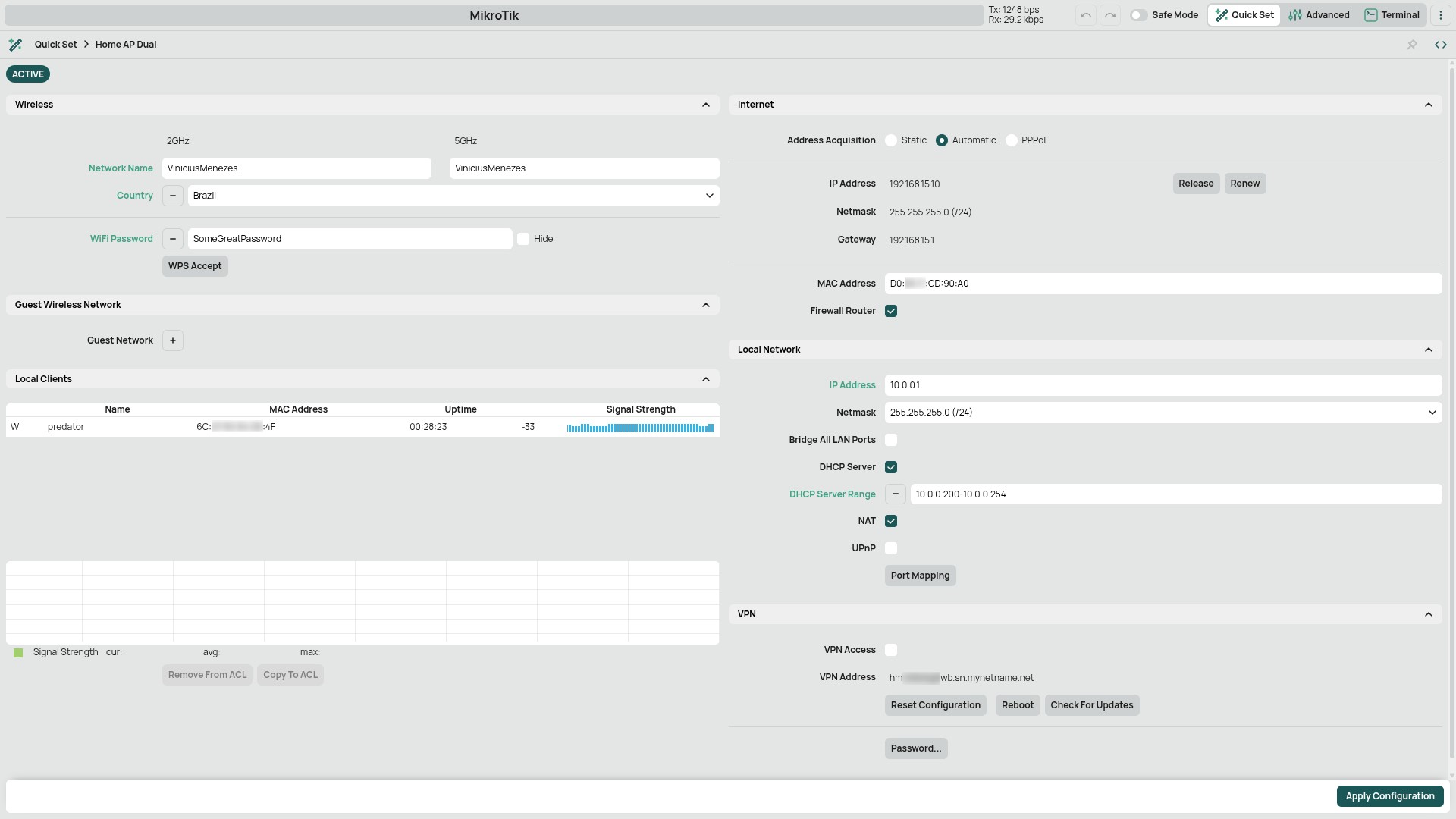
The most important part of this screen is the Wireless section. Define a Network Name for each of the 2GHz and 5GHz networks (it can be the same) and also a WiFi Password. The password must be at least 8 characters long. Choose your Country to apply country regulation settings.
If you want to change the local network addresses, adjust the fields in the Local Network section:
- IP Address: this will be the address of the MikroTik itself (I set it to
10.0.0.1) - DHCP Server Range: the range of IP addresses the MikroTik should hand out via DHCP. Since I like to register my devices manually and have more control over their addresses, I left only the last addresses to be assigned to unknown devices (
10.0.0.200-10.0.0.254)
By convention, the IP address ranges available for use in private networks are:
| Private network | IP address range | Number of IPs |
|---|---|---|
| 10.0.0.0/8 | 10.0.0.0 to 10.255.255.255 | 16,777,216 |
| 172.16.0.0/12 | 172.16.0.0 to 172.31.255.255 | 1,048,576 |
| 192.168.0.0/16 | 192.168.0.0 to 192.168.255.255 | 65,536 |
In my case, I decided to use the 10.0.0.0/24 network simply to save on typing (these are the shortest addresses and therefore the easiest to type).
Finally, click the Apply Configuration button.
Once that’s done, you’re disconnected from the default network and the new network becomes available.
Now you can connect to the new network and use it with a minimum of security.
Accessing the MikroTik through the web interface
You can now access the MikroTik at its new address (10.0.0.1).
Open the browser and go to 10.0.0.1. The web interface asks for the password:
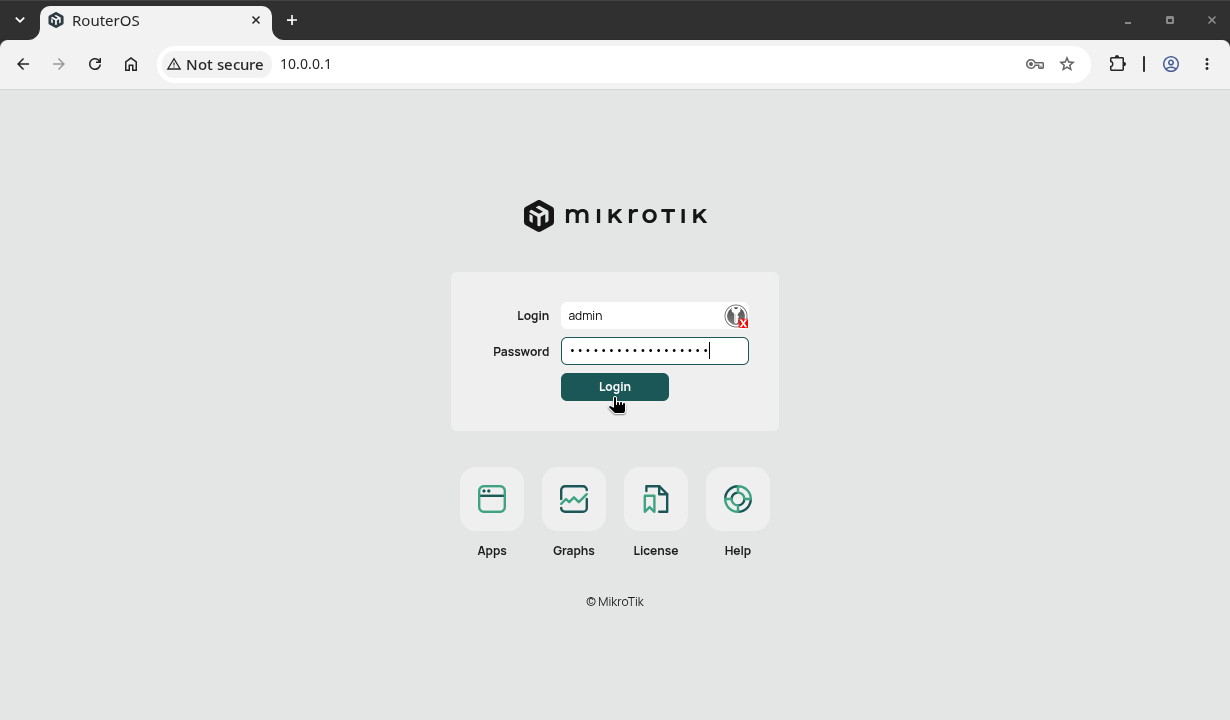
Type the password you set for the MikroTik configuration and click Login.
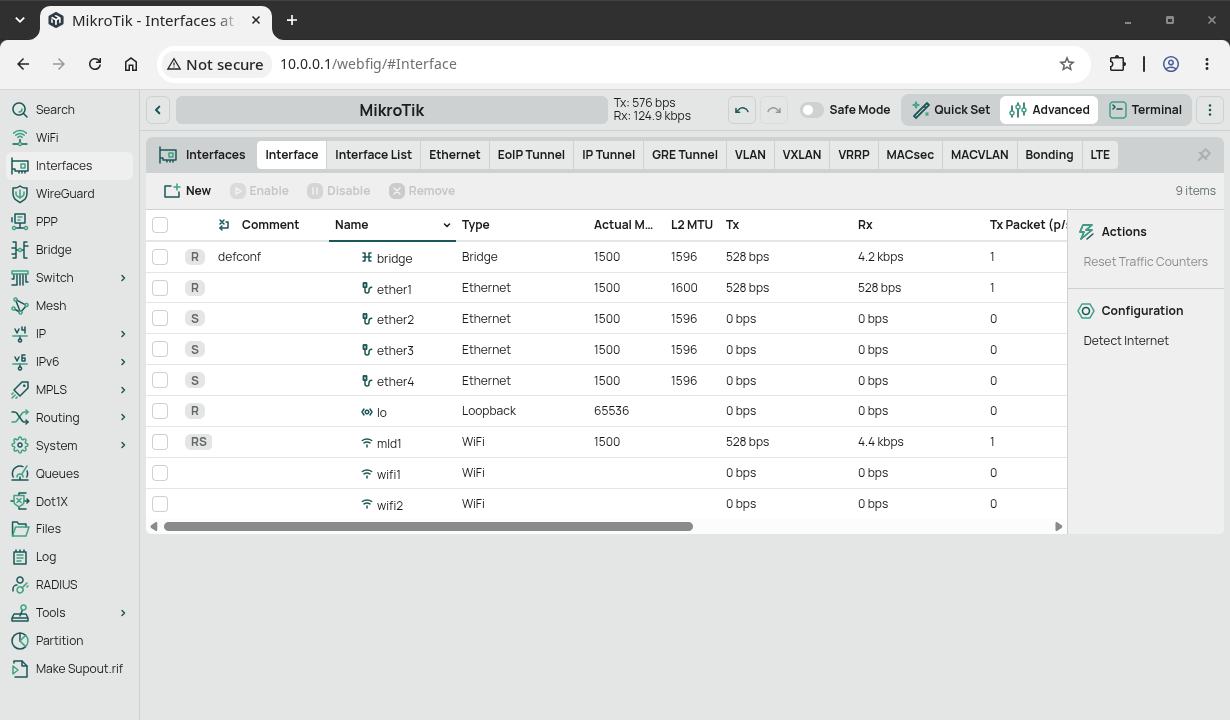
Inside the web interface, switch from Quick Set to Advanced to access the more complete interface:

Downloading WinBox
Through the MikroTik’s web interface, you can access virtually all of its settings. Even so, many network administrators prefer to manage the MikroTik with the WinBox program, because it offers some conveniences the web interface doesn’t. WinBox can find MikroTik devices on the network automatically, and it can connect to them by their MAC address, even if they don’t have an IP address or if you’ve made a mistake in the IP settings and lost access through the browser. It also lets you save a list of devices, which is handy if you manage more than one.
Back in the day, WinBox was a Windows-only program, which could be run on Linux using Wine. Fortunately, the current version, WinBox 4, is available natively for Windows, macOS, and Linux.
To download WinBox, go to the MikroTik downloads page and download the version for your operating system.
Alternatively, if you are using Linux Kamarada, Manjaro or Arch Linux, you can conveniently install the winbox package from the AUR.
On other Linux distros, downloading WinBox from the website you’ll get a ZIP file. Extract it to a place that’s easy to remember. To illustrate, I’m going to create a programs folder inside my home folder and extract the downloaded WinBox to /home/vinicius/programs/winbox.
Starting WinBox
To open WinBox, just double-click the WinBox executable:

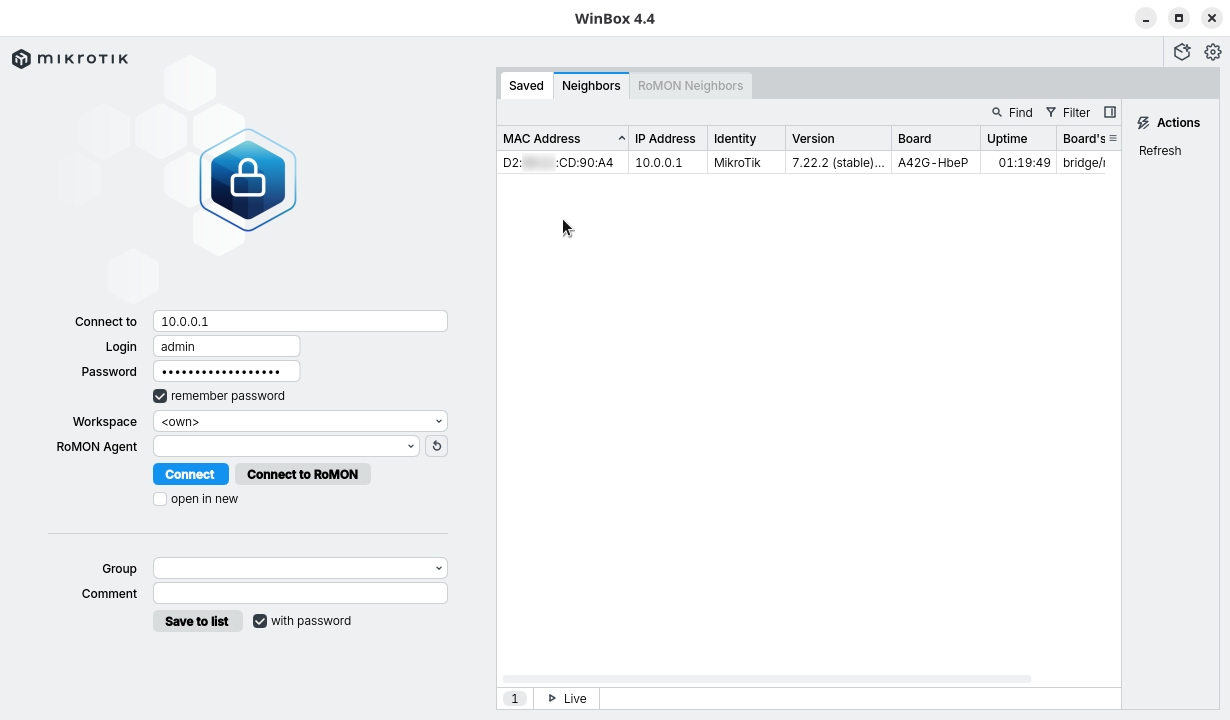
On Linux, to make it easier to start WinBox from the applications menu, let’s create a .desktop file for WinBox.
Open a text editor, then copy and paste the following content:
[Desktop Entry]
Name=WinBox
Exec=/home/vinicius/programs/winbox/WinBox
Icon=/home/vinicius/programs/winbox/assets/img/winbox.png
Type=Application
Categories=Network;
(replace /home/vinicius/programs/winbox with the folder where the files are)
Save this file in ~/.local/share/applications with the name winbox.desktop.
With that, you should be able to open the applications menu and start WinBox from it:
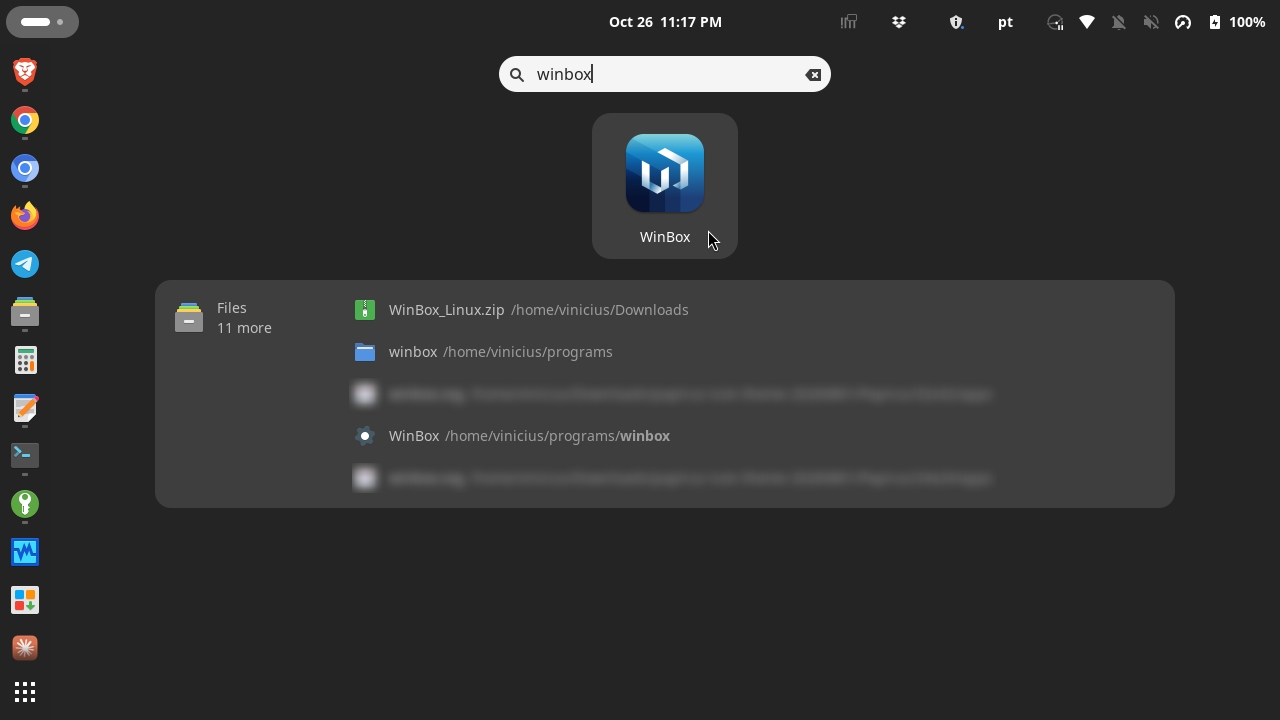
Accessing the MikroTik through WinBox
When started, WinBox looks for MikroTik devices in the same layer 2 (data link) broadcast domain and lists them in the Neighbors tab.
If your MikroTik device appears in that list, double-click it.
If your MikroTik doesn’t appear, you can try clicking the Refresh button.
Depending on your computer’s firewall settings, WinBox may not be able to find the MikroTik.
But this automatic discovery is just a convenience, it’s not actually required to access your MikroTik. As a last resort, type the MAC address or the IP address of your MikroTik in the Connect To field.
Type the Password you set for the MikroTik configuration, optionally check the option to remember password, and click Connect.
Network interfaces
Note how similar WinBox is to the web interface:
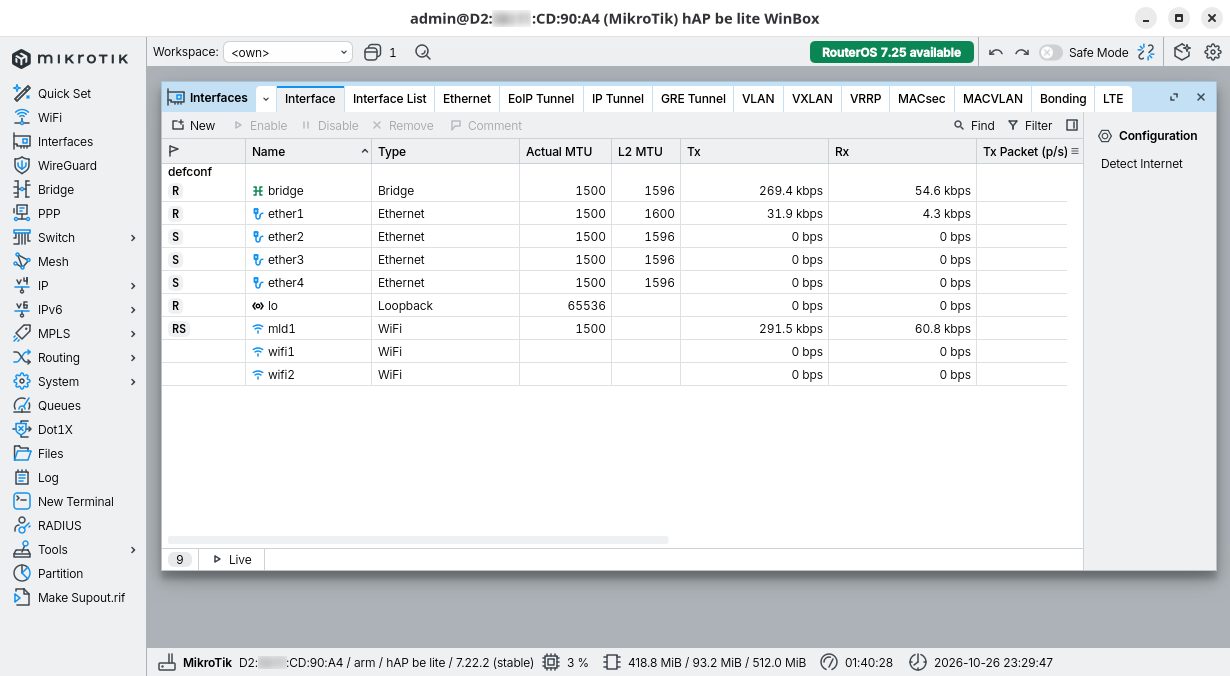
The window shown in the image above is the list of the MikroTik’s network interfaces. To open it, click the Interfaces item in the menu on the left.
In the interface list, you can see the traffic transmitted (Tx) and received (Rx) on each interface.
Checking the Internet connection
In the WinBox interface, these lists usually provide more information and options when you double-click an item.
As an example, let’s see how the MikroTik can show us information about the speed of our Internet connection.
Double-click the ether1 interface (the interface the ISP’s modem is connected to) and, in the window that appears, switch to the Traffic tab:
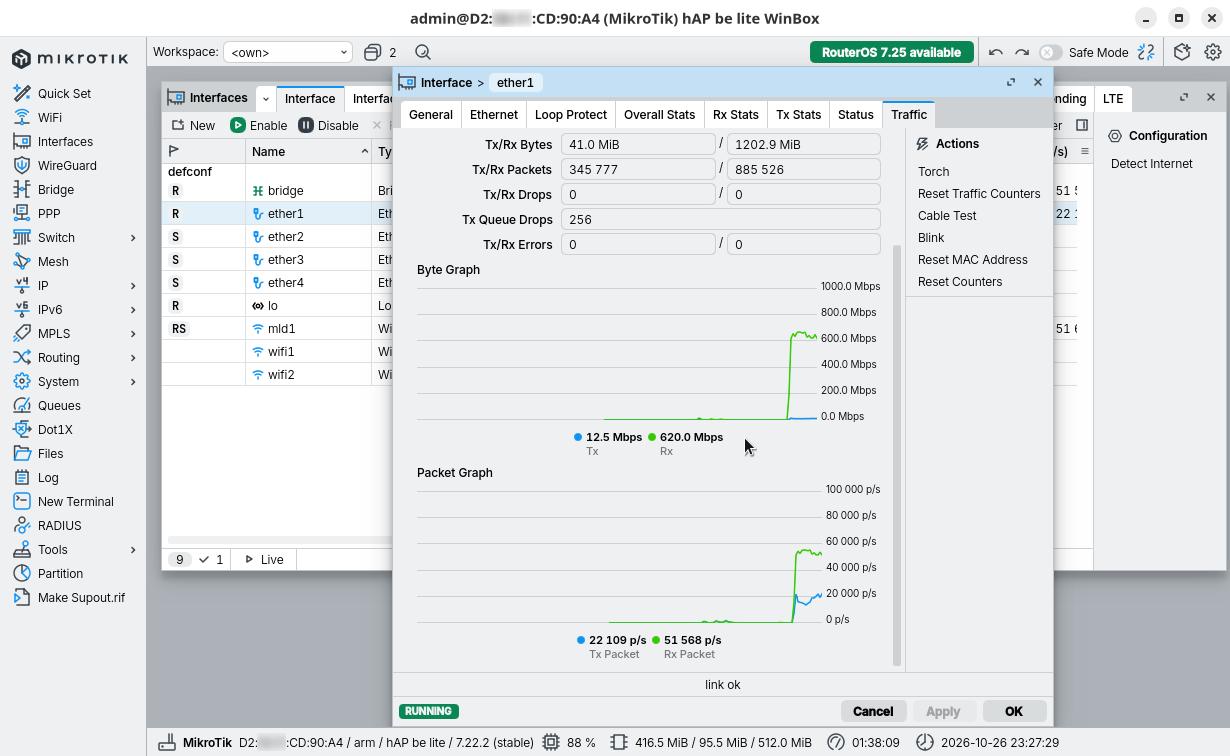
To generate network traffic, play a video on YouTube or Netflix, or use speed test services such as Speedtest or Fast.com. Watch the traffic increase in the graph.
Once, I used a screenshot of this screen to complain to my ISP about a slow connection (“Where’s the 15Mbps Internet I pay for? The average here doesn’t even reach 1!”):
@Vivoemrede cadê a Internet de 15Mbps que eu pago? A média aqui não chega a 1! @NetflixBrasil tá ruim parecendo visão de míope! pic.twitter.com/Z9xXEZcFQj
— Antônio Vinícius (@vinyanalista) August 19, 2017
Devices connected to the Wi-Fi network
The MikroTik shows detailed information about the devices connected to the Wi-Fi networks. To see it, in the menu on the left, click WiFi, then select the Registration tab:
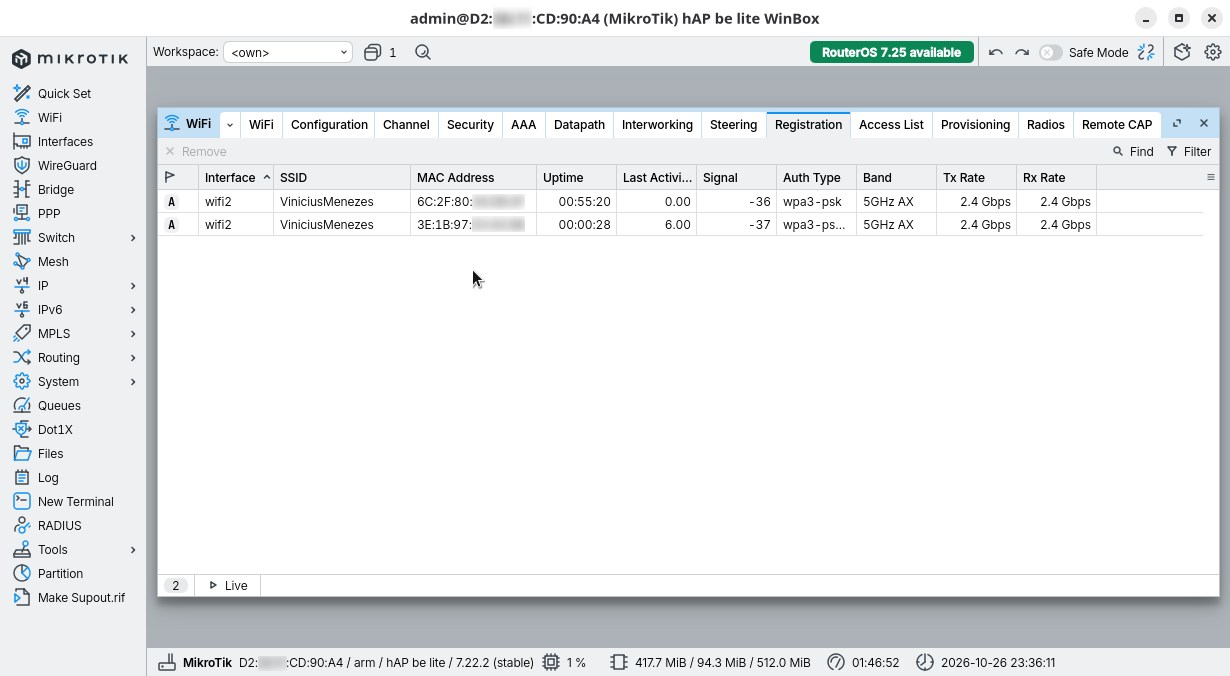
If you can’t identify a device, the MAC Vendors website may help:
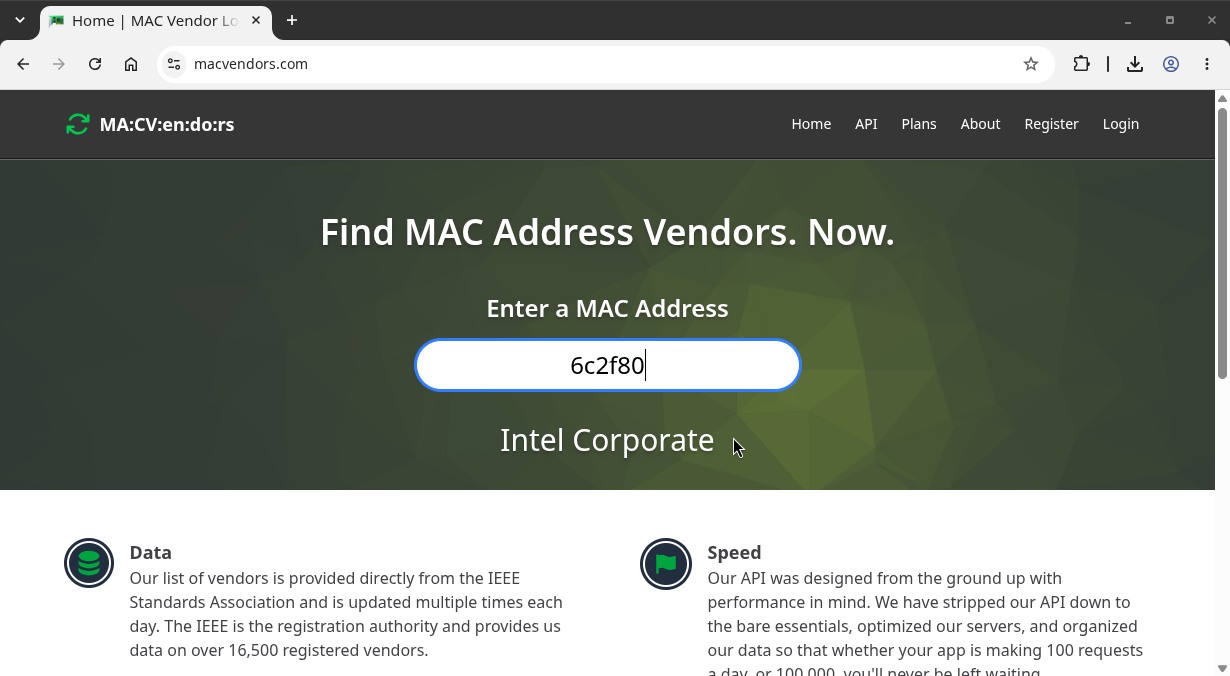
The MAC address of each device is unique, burned into its hardware, and assigned by the manufacturer of the network interface. It consists of 6 bytes. In the human-readable representation, each byte is represented by two hexadecimal digits and separated from the others by colons (:). The first three bytes identify the manufacturer and the last three identify the device itself.
In the example in the image above, the MAC Vendors website shows that the MAC address 6C:2F:80:XX:XX:XX belongs to a device made by Intel (identified by the first three bytes 6C:2F:80). I already know it’s my laptop, because it has an Intel Wi-Fi adapter.
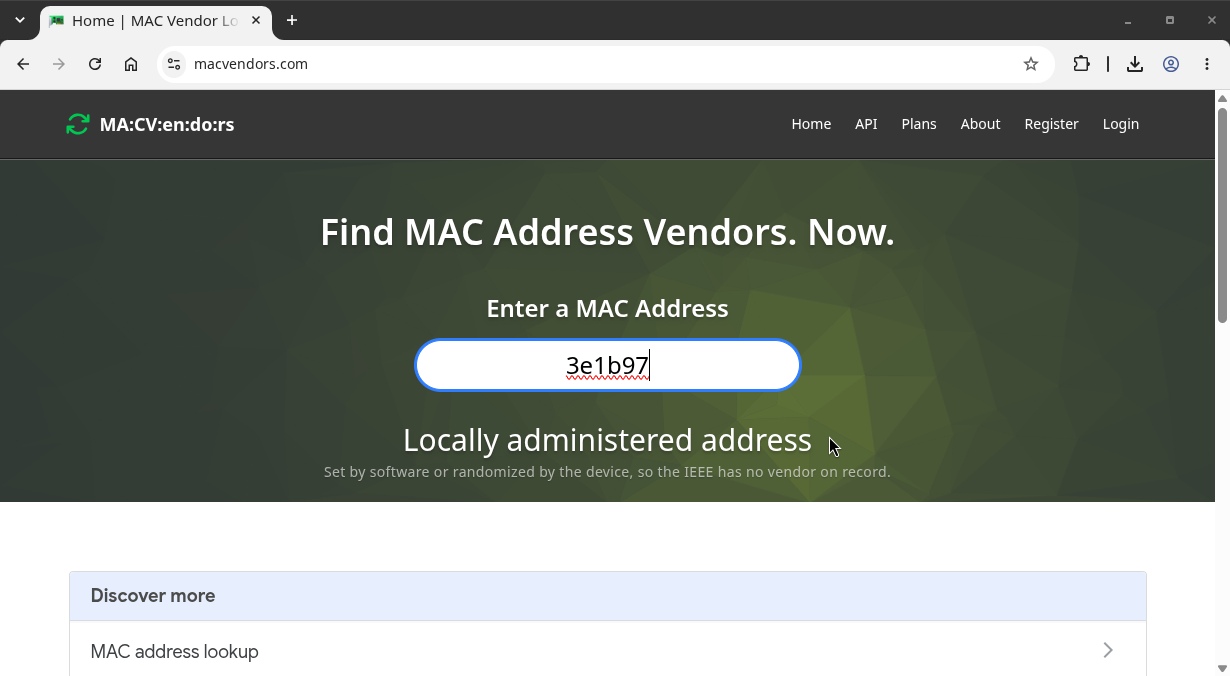
Note that, nowadays, smartphones and computers usually use a random (“private”) MAC address for each Wi-Fi network, to protect the user’s privacy. In that case, the MAC address won’t help you identify the manufacturer.
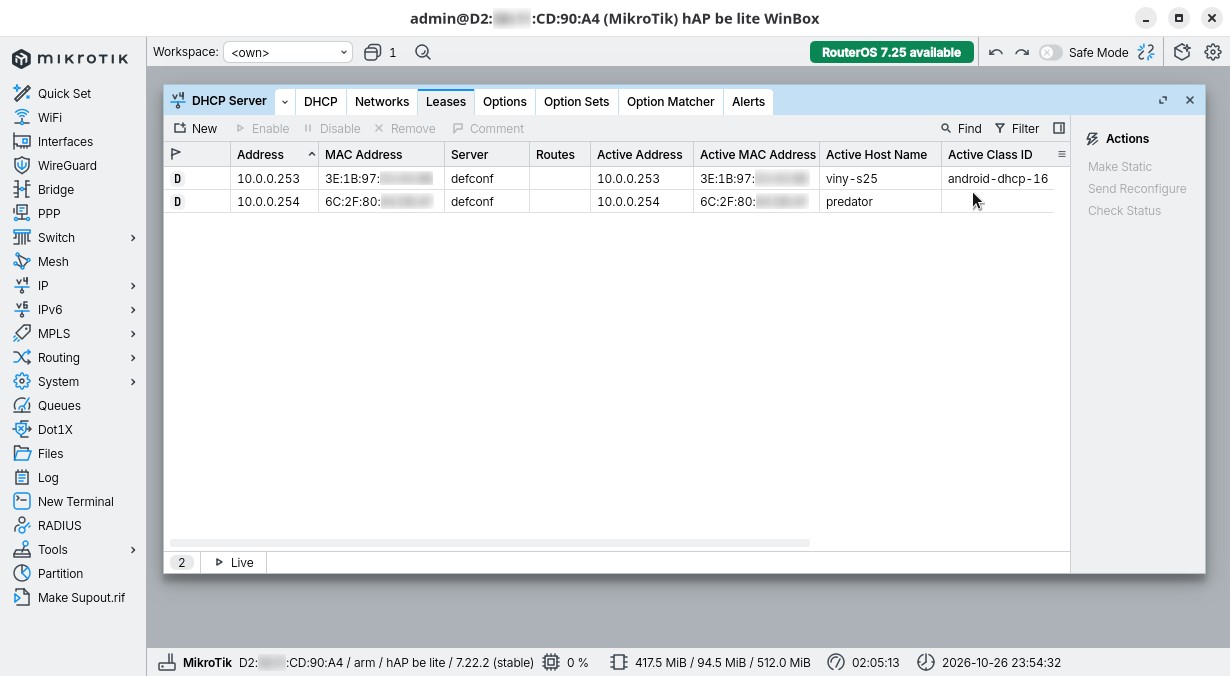
To identify the device, it’s easier to look at its hostname in the list of DHCP leases (IP > DHCP Server > Leases).
To be continued…
With what we’ve done so far, the MikroTik doesn’t do much more than any other ordinary router. But you can already notice its power by looking at the number of options in its configuration interfaces (web and WinBox).
In the coming days, I’ll share other tutorials showing other features of this small but bold router.
Meanwhile, you may want to take a look at the MikroTik User Manuals.