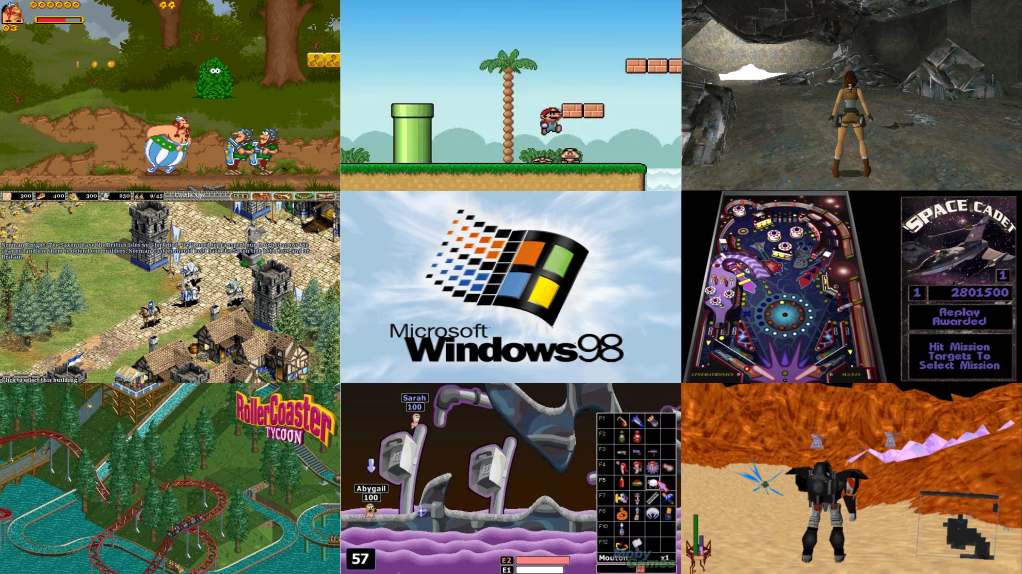
Microsoft released Windows 98 on June 25, 1998. It’s been 28 years now! If you used computers in the 1990s or early 2000s, you certainly know Windows 98, which marked your childhood, school life, academic life, or professional life. In my case, Windows 98 was the first operating system I used and it marked my childhood. Just out of nostalgia, I managed to install Windows 98 on a VirtualBox virtual machine and run several games I played when I was a kid. The experience was so good that I decided to write this tutorial in case anyone else wants to join me in this nostalgia moment.
Note that I will not present a detailed step-by-step guide here as I usually do in tutorials on this site and on Linux Kamarada. Instead, I will assume you know how to install and use both VirtualBox and Windows 98, and I will focus on the details of how to make Windows 98 work in VirtualBox on modern computers.
If you are not familiar with VirtualBox, the following tutorials may help you:
- VirtualBox: the easiest way to try Linux without installing it
- Installing VirtualBox on Linux
- Tips for using VirtualBox every day
For future reference (if you are reading this tutorial later, you may need to do something different), I am currently using VirtualBox version 7.2.8 (released April 21, 2026) installed on Linux Kamarada. VirtualBox can also be used on Windows, and if that is your case, the steps below are very likely similar. I also note that this tutorial works for both Windows 98 and Windows 98 SE.
To demonstrate that it is possible to play games with Windows 98 on VirtualBox, I will present 4 games here that are considered abandonware.
What is abandonware?
Abandonware (a neologism for “abandoned software”) is what we call a program that is no longer sold, neither in physical stores nor online, and that also no longer receives support from its creator. Over time, they stop working on modern operating systems. This happens to many computer and video game titles, which end up “being left behind” as technology advances.
There is no exact rule to say whether a game is abandonware or not. It is more a matter of common sense: the game still has copyright, but the owner does not seem to care about selling, supporting or protecting it anymore. Sometimes the company that made the game simply closed. Other times, the creator decides to release the game or even its source code, as happened with Tyrian.
Note that many games that were once considered abandonware now have remakes for newer systems available on platforms such as GOG.com or Steam. To play them, you do not need a virtual machine with Windows 98. Examples include:
- Age of Empires II
- Counter-Strike
- Diablo II
- Half Life
- RollerCoaster Tycoon
- The Sims
- Tomb Raider
- Tyrian 2000
- Worms 2
- Worms: Armageddon
The My Abandonware website is a good reference: the games they offer for download can be safely considered abandonware. When a game is re-released, like the ones listed above, they update the game page with links to stores where the game is available.
Suggested games for Windows 98
Astérix & Obélix is a platformer released in 1996 for MS-DOS and Windows, based on the famous French comic book characters. Developed by Infogrames, the game lets you control Astérix or Obélix through levels inspired by the comics, traveling across the Roman Empire. The style is very similar to classic platform games of the era, with colorful 2D graphics and an upbeat soundtrack. Despite its simplicity, it won fans for staying true to the humor and aesthetics of the original comics.
Beast Wars: Transformers is a 3D action game released in 1998 for Windows (and also for PlayStation), based on the animated series of the same name from the Transformers franchise. Published by Hasbro Interactive, the game puts the player in control of characters from the Maximals or Predacons factions, allowing transformation between animal and robot forms during missions. With impressive graphics for its time, the game is fondly remembered by fans for bringing the Beast Wars universe to the PC.
Mario & Luigi (better known simply as “Mario”) is a free MS-DOS game widely spread in the 2000s. Created by Mike Wiering of Wiering Software and inspired by Super Mario, the game features simple 2D graphics, six levels, and classic platform gameplay with jumping, running, and superpowers. It is not an official licensed game by Nintendo, but rather a fan game. It started as a personal project to practice programming in Turbo Pascal and its source code is available.
By the way, if you like games in this style, Wiering Software has other games worth checking out.
3D Pinball: Space Cadet is a classic arcade game included in Microsoft Plus! for Windows 95 and later in Windows XP. Published by Microsoft, it was part of the Full Tilt! Pinball package, which included other tables besides Space Cadet. In the game, the objective is to climb ranks on a space mission, completing tasks and scoring points on a themed table full of lights and sound effects. Despite its simplicity, it became famous for being one of the most popular preinstalled Windows games.
Windows 98 on VirtualBox limitations
Normally, when we use VirtualBox, Guest Additions are our best friends, allowing deeper integration between the host system and the operating system installed in the virtual machine. The bad news is that they are not available for Windows 98. That does not prevent using Windows 98 in VirtualBox; it just means some features that would make this easier are not available, such as shared clipboard.
Also note that you will not be able to open the vast majority of current websites with the Internet Explorer browser that comes with Windows 98. Still, we will need to install drivers, programs, and games on Windows 98. Therefore, we will need to download them on the real machine and transfer them to the virtual machine.
Which leads to the next limitation: how to transfer files from the real machine to the virtual machine (and vice versa)? Personally, when I work with virtual machines, I prefer to transfer files over the network. However, the version of the SMB protocol (better known as “file and printer sharing”) available in Windows 98 (SMB 1.0) is old and insecure and is not supported in newer versions of Windows and Linux.
So, to transfer files to/from the VM, we are left with the following options:
- use some program to create an ISO image and then insert that ISO image into the virtual DVD drive (examples of ISO creation programs include CDBurnerXP on Windows and Brasero on Linux)
- use a FAT32-formatted USB flash drive (this is the easiest way; you can even format it using Windows 98 inside the virtual machine, but note that even if you use a USB drive to transfer most files, you will still need to install the USB driver first via an ISO image to be able to use the flash drive)
- use the FTP protocol: FileZilla, for example, offers both FTP client and server; you could install the client in the virtual machine (an older version compatible with Windows 98, of course) and the server on your computer, or vice versa
- if you know your way around web servers, you could try installing Apache or nginx on your computer and download the files in the virtual machine using Internet Explorer.
In this tutorial, I will opt to use the USB flash drive. Feel free to use another solution if you prefer and adapt the tutorial accordingly.
Note that if we were using Windows XP, we would not have any of these limitations. A possible limitation would be that many applications still do not work well even in Windows 98 compatibility mode. Maybe on a future nostalgic adventure I will try running Windows XP in VirtualBox? If you would like to see that, please comment at the end.
What we will need
Before we start, here is a list of files for you to download and organize however you want:
Windows 98 CD or ISO image: if you have a Windows 98 CD but your computer does not have a CD drive, it is not expensive to buy one. It is also not hard to find Windows 98 ISO images on the Internet, though I will not share any links to them here.
patcher9x floppy disk image:
patcher9x-0.9.91-boot.img
- USB driver ISO image: it was advertised at the time that one of Windows 98’s novelties compared to Windows 95 was USB support, which was not a lie, but Windows 98 did not support USB 2.0 or flash drives, which could be achieved with third-party drivers.
- If you plan to use a flash drive to transfer files to the VM, you can download a USB driver ISO image here:
driver-usb-en.iso. - If you plan to create your own ISO image with the files, you can download the USB driver as a ZIP file here:
nusb36e.exe.
- If you plan to use a flash drive to transfer files to the VM, you can download a USB driver ISO image here:
ISO image of Astérix & Obélix (if you want to play this game)
ISO image of Beast Wars: Transformers (if you want to play this game)
Note that the files listed so far will stay on your computer; you will not transfer them into the virtual machine. The following files you will need to transfer into the virtual machine:
- Archive utility: I recommend using the latest version of WinRAR compatible with Windows 98 (
wrar393br.exe), but you can also use an old version of WinZip (winzip100.exe) or 7-Zip (7z920.exe) - SoftGPU video driver:
softgpu-0.8.2025.53.zip(alternatively, just like the USB driver, there is an ISO image available:softgpu-0.8.2025.53.iso) - ICH AC97 audio driver:
0001-VXD_A406.exe - Xbox 360 controller driver:
x360c.w98.x86.en.zip(if you have that controller and want to use it with Windows 98) - Mario & Luigi:
Mario-Luigi_DOS_EN.zip(if you want to play this game) - 3D Pinball: Space Cadet:
Space-Cadet-3D-Pinball_Win_EN.exe(if you want to play this game)
General recommendations
Before we begin, here are some recommendations:
- take snapshots of the virtual machine as you progress through the tutorial. That way, if something goes wrong, you can return to a point where the virtual machine was working and try again;
- whenever an installer or Windows itself says it is recommended to restart and asks whether you want to do so, answer yes;
- sometimes you will have to force-restart the virtual machine via VirtualBox, that is expected and it is fine (actually, you probably already did that with your old computer, right?).
Without further ado, let’s get to work!
Creating the virtual machine
Start VirtualBox and create a virtual machine with the following settings:
- Operating system: Windows 98
- RAM: 128 MB
- Virtual hard disk: 16 GB
- Network: bridged adapter
Insert the Windows 98 ISO image into the virtual DVD drive and start the VM.
Installing Windows 98
Install Windows 98 as you normally would.
Near the end of installation, you will find a detail of running Windows 98 on VirtualBox: the error message “The SHELL32.DLL file is linked to missing export SHLWAPI.DLL:tFileAttributesA.”
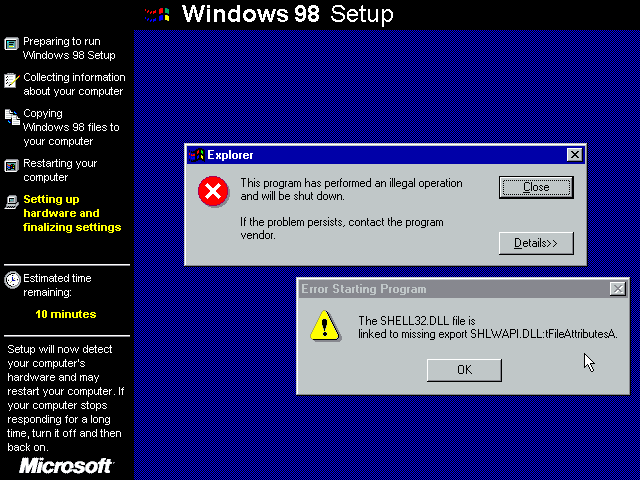
You will also see an error message related to Explorer: “This program has performed an illegal operation and will be shut down.”
You can close both error messages and restart the virtual machine.
If you try to enter Windows, you will receive the same error messages.
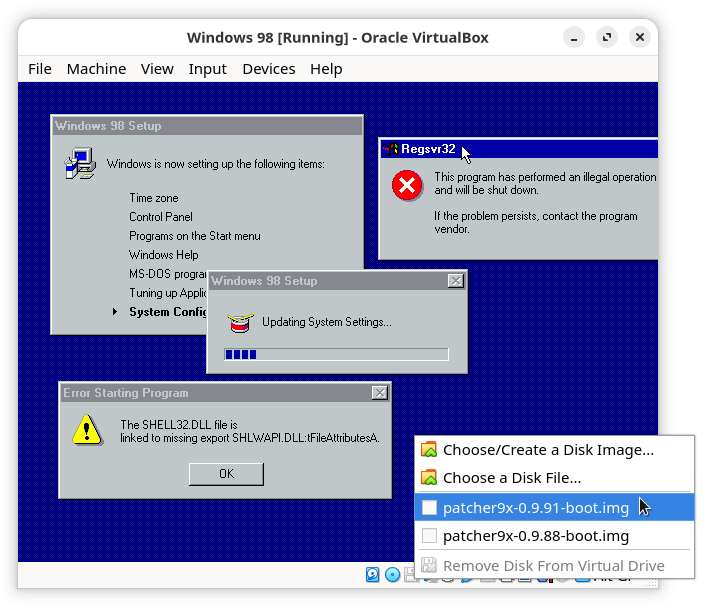
Insert the patcher9x floppy disk image into the virtual floppy drive and restart the virtual machine:
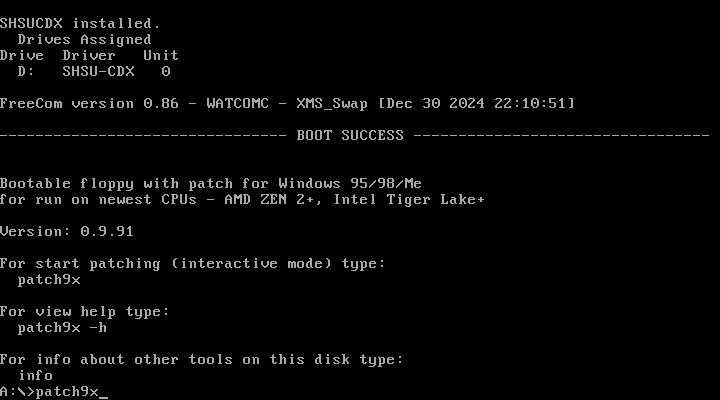
At the MS-DOS prompt, run patch9x:
Accept the default answers for the questions by hitting Enter and when asked whether you want to apply the patches, answer yes with y:
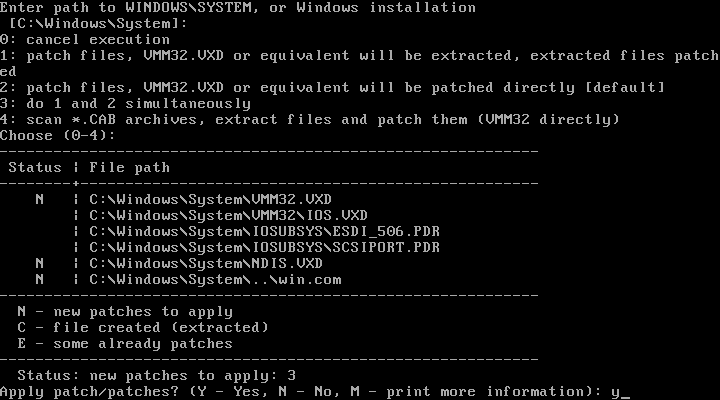
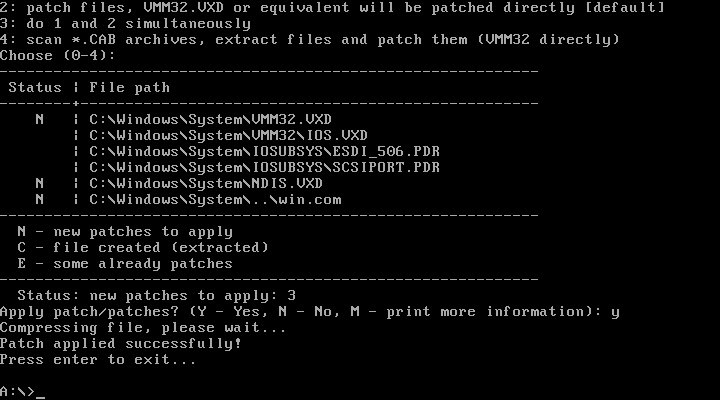
At the end, remove the floppy image and restart the virtual machine.
Now you will be able to start Windows 98 normally:
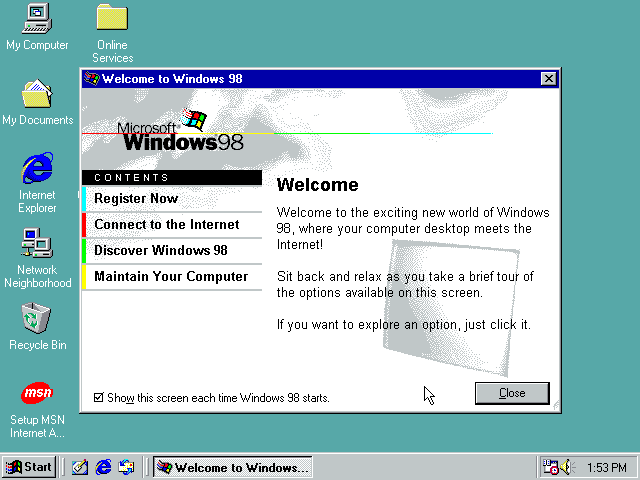
But note that graphics look poor with 256 colors only.
Installing the USB driver
Remove the Windows 98 ISO image from the virtual DVD drive and insert the USB driver ISO image. Start the installation by double-clicking nusb36e.exe:
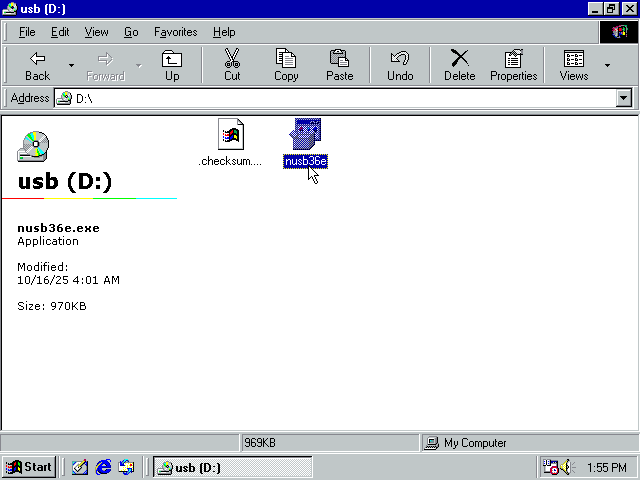
Then restart the virtual machine.
Connect a USB flash drive to your computer (make sure it does not contain any relevant data and can be formatted) and pass it through to the virtual machine:
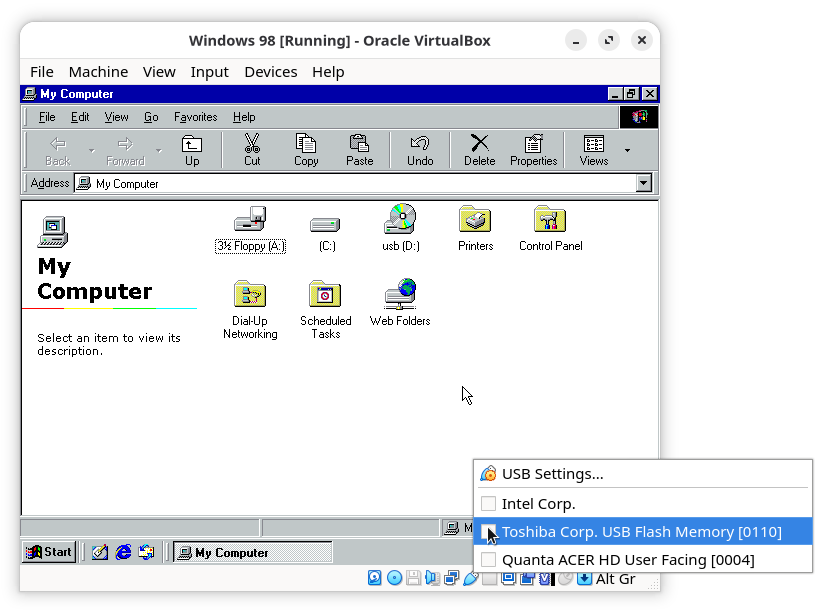
The first time, the USB flash drive is not recognized immediately. Go to Control Panel > System > Device Manager, select Other devices > PCI Universal Serial Bus and click the Properties button:
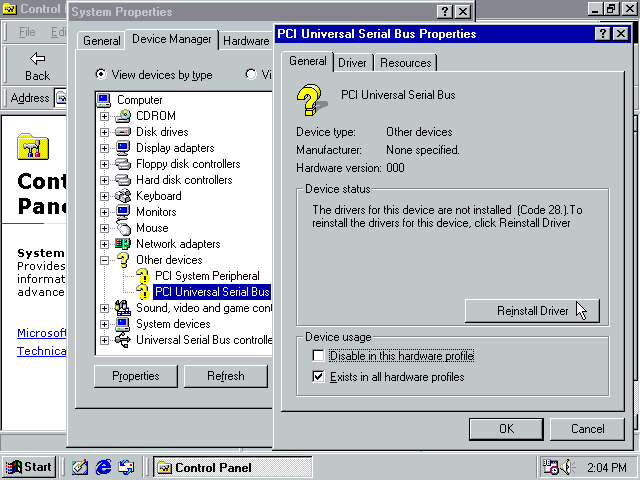
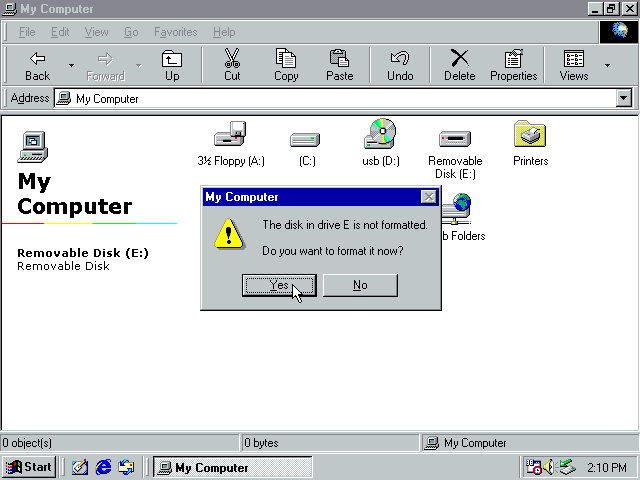
Note: “The drivers for this device are not installed”. To fix it, click Reinstall Driver. Let the wizard automatically search for the best driver. The system will find and install the driver for the USB controller and then do the same for the USB flash drive.
When it finishes, the USB flash drive will appear in My Computer:
Transferring files to the virtual machine
Format the flash drive and eject it (first in Windows 98 and then in VirtualBox).
Now the flash drive will appear on your computer, formatted with the FAT32 filesystem.
Transfer the files we will need to the flash drive.
Then insert it again into the virtual machine:
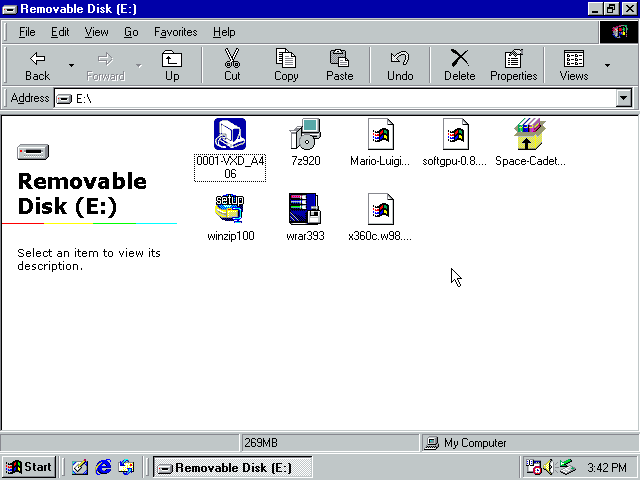
Copy those files to a location such as My Documents and eject the flash drive.
Archive utility
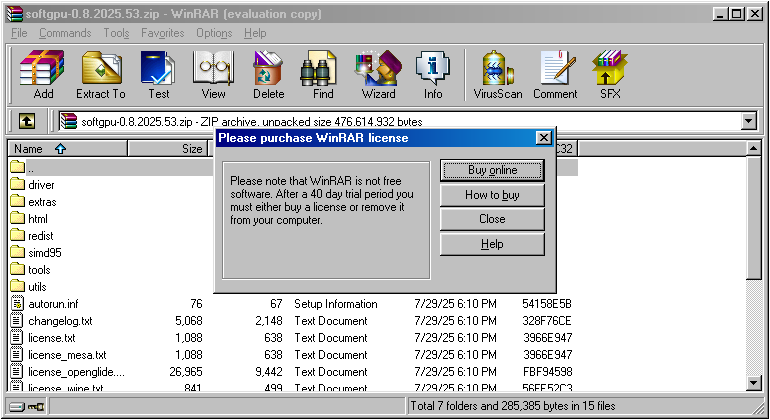
Next, install the archive utility of your choice (WinRAR, WinZip, or 7-Zip, or all three). Some drivers and games are compressed archives and you will need an archive utility to extract them.
Video driver
Shut down the virtual machine.
Then make the following change in the virtual machine settings:
- Operating system: Windows 7 (32-bit)
Click OK to apply it. This change alone will not modify the virtual machine hardware, but it will allow us to make the following changes.
Now go back to the virtual machine settings and make these additional changes:
- Video Memory: 128 MB
- Graphics Controller: VBoxSVGA
- Features: 3D Acceleration
Start the VM. Windows 98 will detect the new video card. Let the Add New Hardware Wizard automatically install the recommended driver, and restart.
Now let’s install the SoftGPU video driver, which will provide 3D acceleration to this virtual machine. Go to My Documents, extract the SoftGPU ZIP file. Enter the SoftGPU folder and run softgpu.exe.
Make sure the correct VirtualBox version is selected in the Hypervisor preset combobox and click the Install button:
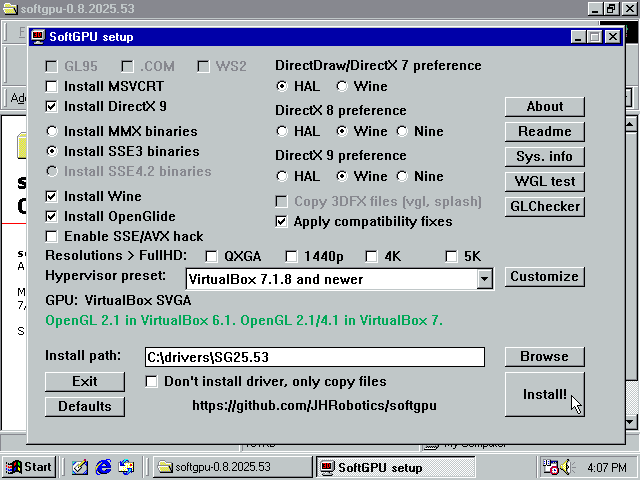
First, DirectX is installed, and the virtual machine is restarted. Then, do that again: start the SoftGPU installer, click Install, wait, and restart.
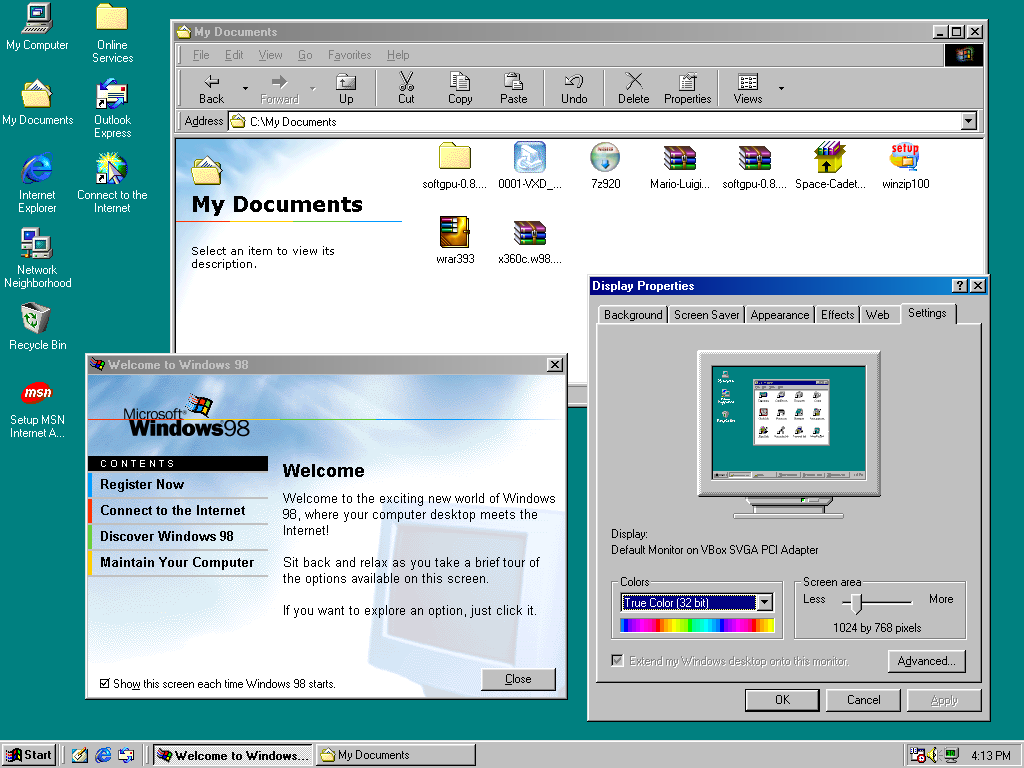
This time the system will boot with better graphics. You can also set up a higher resolution:
Audio driver
When we created the virtual machine and chose Windows 98 as the operating system, VirtualBox selected SoundBlaster 16 as the virtual sound card. If you want, you can keep that configuration; note that audio already works. However, this virtual sound card is not able to play MIDI, which is required for some games.
To change the sound card model, shut down the virtual machine. Then make the following change in the virtual machine settings:
- Audio Controller: ICH AC97
Start the virtual machine. Then, using WinRAR, extract the contents of the audio driver installer (0001-VXD_A406.exe):
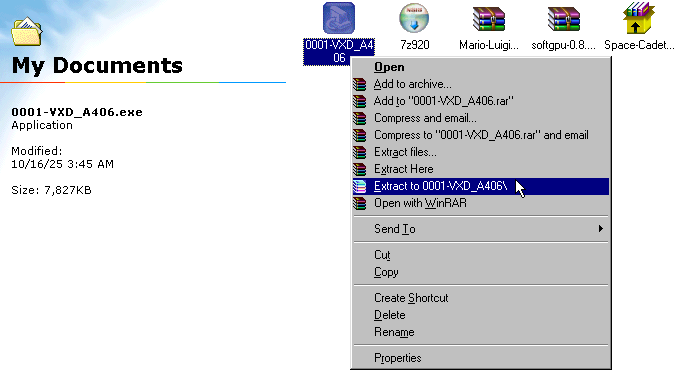
Inside the extracted folder, there is a Win95 folder. The driver itself is inside it.
Go to Control Panel and start the Add New Hardware wizard. Tell the wizard to search for the driver in the Win95 folder.
When finished, you will have sound again. You may need to restart the virtual machine.
Xbox 360 controller (optional)
Optionally, if you have an Xbox 360 controller and want to use it, extract the contents of the driver ’s ZIP file, connect the controller to the virtual machine (the same way you did with the flash drive), and install its driver using the Add New Hardware wizard.
Ready to play!
If you’ve made it this far, your Windows 98 virtual machine is ready to use, to run any games and programs you want.
I hope you enjoy it! If you have any questions or suggestions, please write them in the comments. Wish you the best, until next time!
References
To learn how to run Windows 98 on VirtualBox, and later to write this tutorial, I consulted several pages. I’ve already included links to many of them in the text, but I also consulted (primarily) the following: