
Artificial intelligence has come to greatly increase our productivity. ChatGPT, for example, has helped me write texts: if you have an idea of the path you want your text to take, you can ask it questions in sequence and have it answer each question in a paragraph. Of course, human revision is a must. But after that, you have a finished text in much less time than if you had to think not about the outline, but about each word.
ChatGPT can also help with computer commands and programming. But since I’ve heard a lot about GitHub Copilot and I already use GitHub and Visual Studio Code, I decided to give it a try. I needed a simple script to solve an everyday problem and I asked GitHub Copilot for it, and it gave me the script I needed to solve my problem.
GitHub Copilot is an AI-powered programming assistant developed by GitHub in partnership with OpenAI (the company behind ChatGPT, by the way). It can suggest code snippets, complete functions, and even entire solutions directly within the development environment. Using advanced language models trained on large volumes of code (public repositories on GitHub), it understands the context of what is being written and offers real-time suggestions, helping to increase productivity, reduce errors, and accelerate learning new languages and frameworks.
It’s possible to use GitHub Copilot on a browser, just like ChatGPT, but I was more interested in seeing how to use it within VS Code.
The problem to be solved: I have a folder with several photos that I want to organize. To do this, I want to group photos by date, placing photos taken on the same day in the same folder. These photos were taken with different phones. Depending on the phone, it names the file with the date and time the photo was taken (e.g. 20251116_174828.jpg) or with sequential numbers (IMG_2248.JPG, IMG_2249.JPG, IMG_2250.JPG…) In the first case, it is easier to find out the date the photo was taken: it’s just a matter of looking at the file name. In the second case, we need to examine the EXIF metadata recorded by the phone in the image file to determine the date the photo was taken.
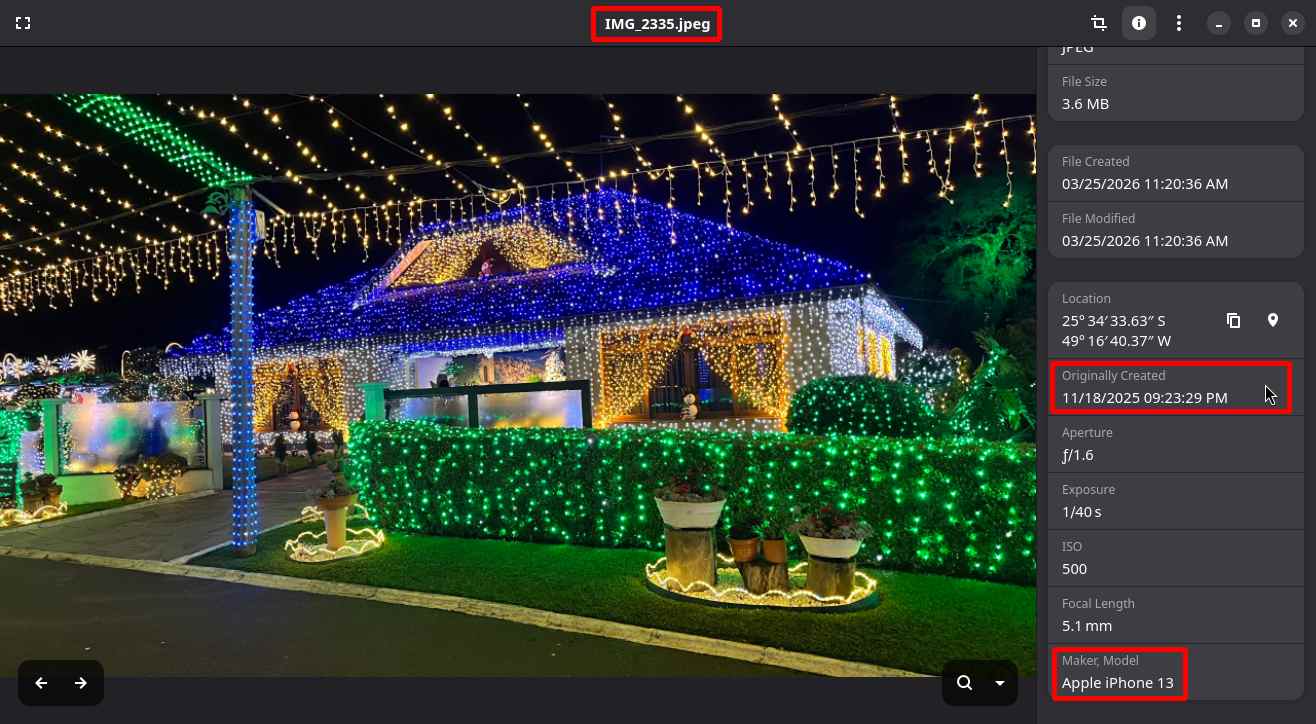 Depending on the phone model, the file name does not contain the photo's date; we need to examine the metadata.
I thought a Python script would do the trick. I chose this programming language because it’s a natural fit for Linux, the operating system I use everyday.
I searched how to get started with GitHub Copilot, found the Quickstart guide, followed it, and quickly came up with a working script to solve my problem. Below, I’ll show you how I did it, and how you can do it as well. I consider my example more interesting, if I may say so myself.
To use GitHub Copilot, you’ll need a personal GitHub account with access to a Copilot plan. You can start with the Free plan, as I did. It has limitations, but it allows you to get a glimpse of GitHub Copilot without having to spend any money right away.
You can click this link to activate the free Copilot plan on your GitHub account.
Next, you’ll need to sign in with your GitHub account to your development environment. I’ll show you how to do this on VS Code, which is the one I use, but keep in mind that GitHub Copilot is available for other IDEs, such as JetBrains and Eclipse. If you use another IDE, search for how to do that on your IDE, but it should be more or less similar.
VS Code already comes with built-in GitHub Copilot support. To enable it, open VS Code and point to the GitHub Copilot icon by the bottom-right corner of the window. Click Use AI Features and sign in with your GitHub account:
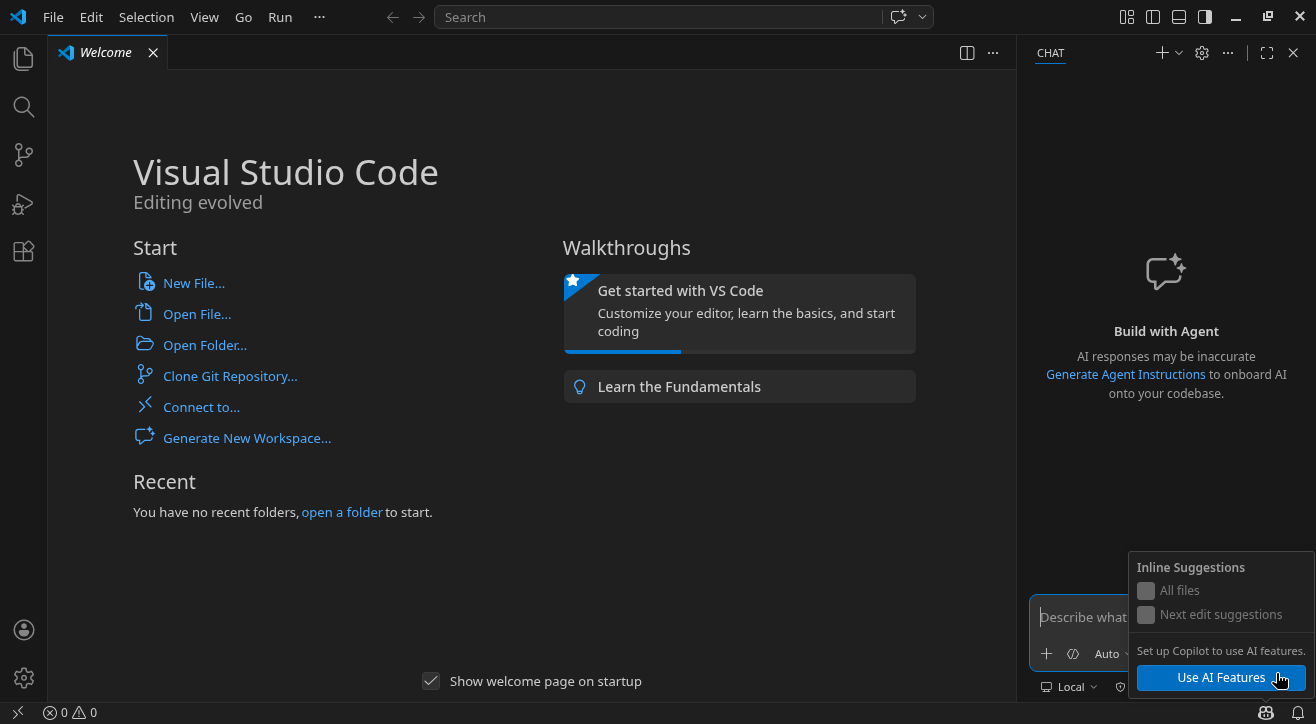
Once GitHub Copilot is enabled, the prompt will appear at the bottom-right corner of the window, where it reads Describe what to build, and then we can use it:
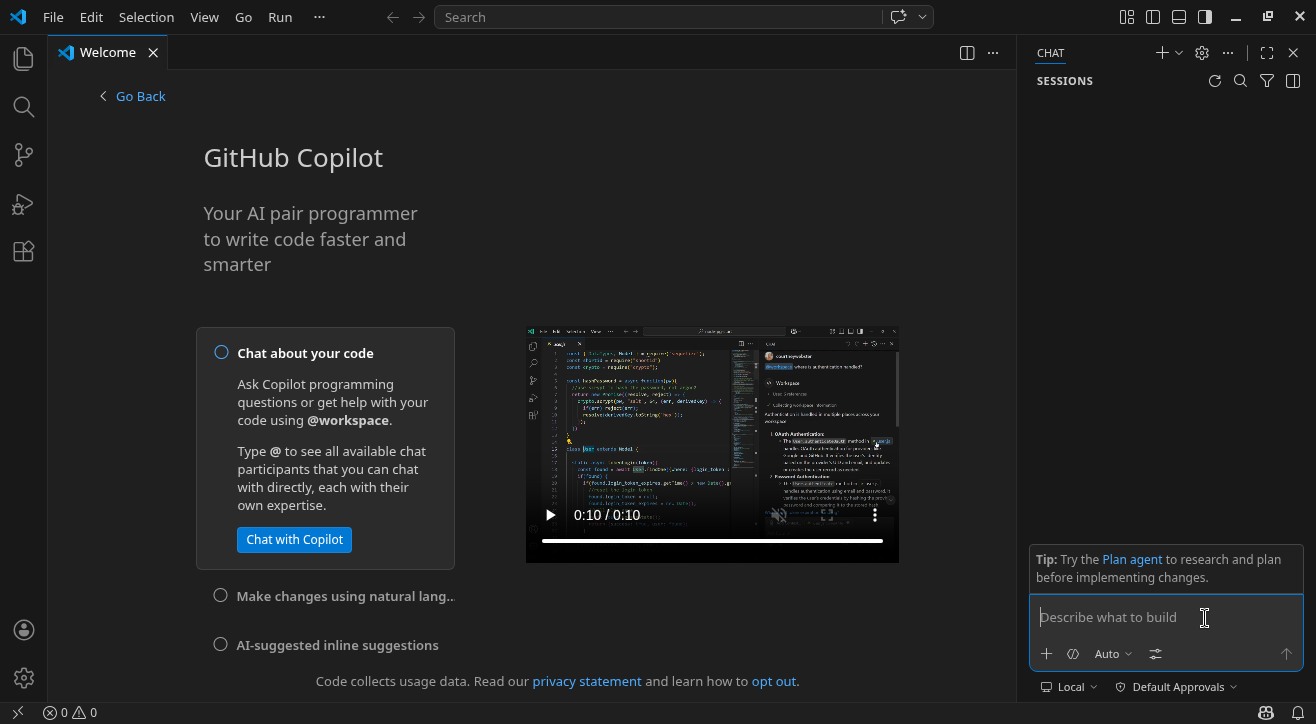
Close VS Code, create a folder for the project, and open VS Code on that folder:
$ cd ~
$ mkdir group-photos
$ cd group-photos
$ code .
Next, copy this text, paste it into the prompt and hit Enter:
Create a Python script to group photos in the current folder based on the date they were taken. This date can be obtained from EXIF metadata, preferably when available, or from the filename (
YYYYMMDD, e.g.20251116_174828.jpg). For each photo in the current folder, the script should determine the date the photo was taken, create a folder namedYYYY-MM-DDif it doesn’t exist, and move the photo to that folder.
After “thinking” for some time, GitHub Copilot creates the file in the project folder, click Keep to accept the suggested script and keep it:
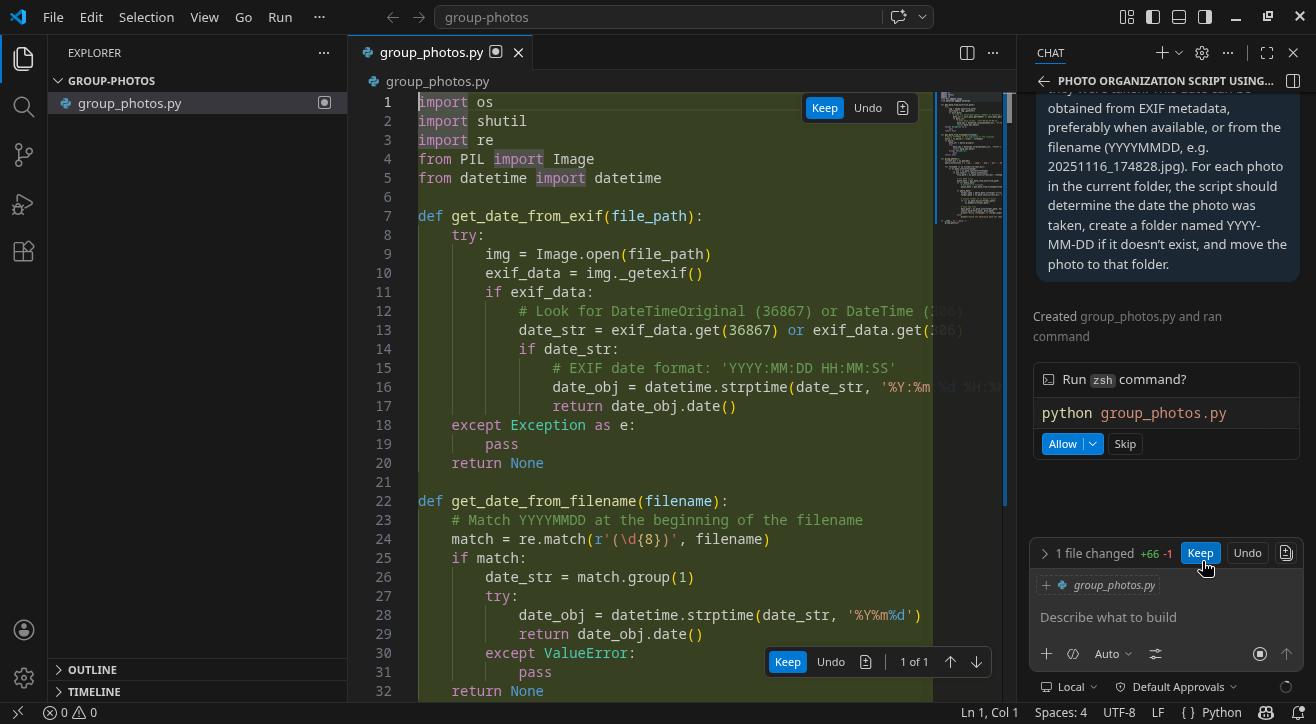
The prompt suggests running the generated script, click Skip. Then, it provides explanations about the script and how to use it:
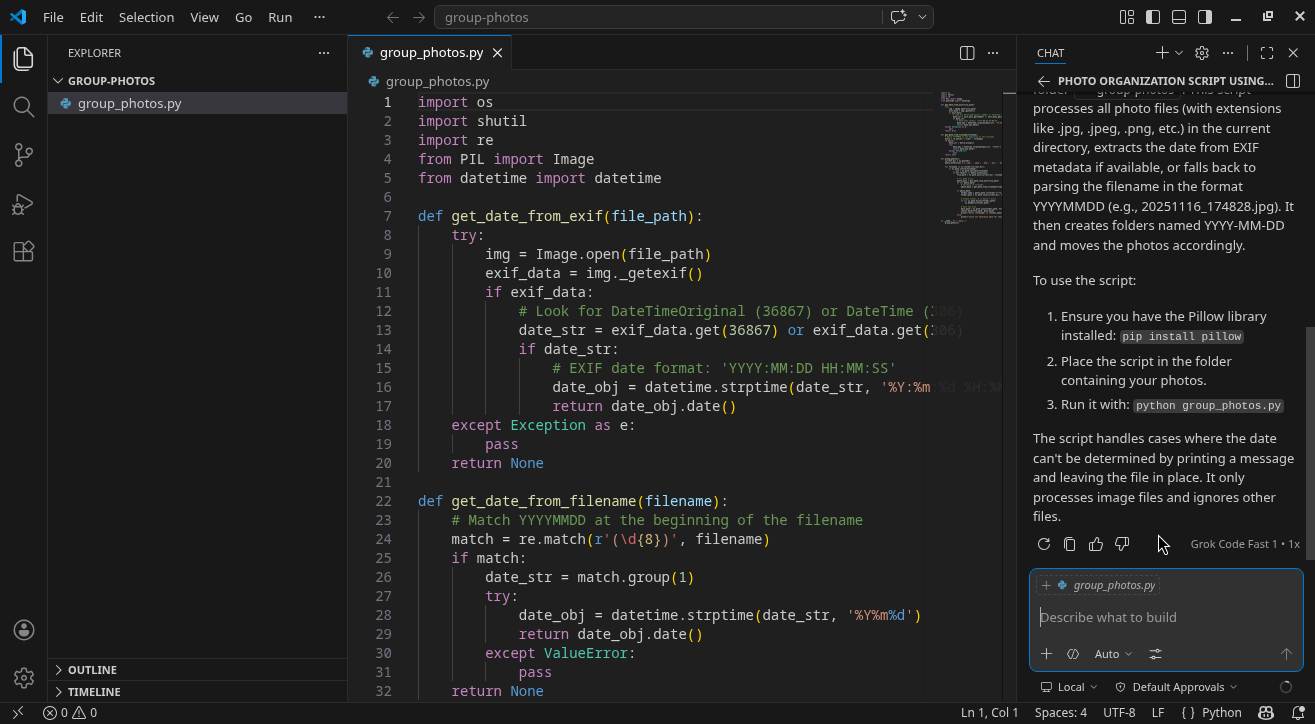
Note that you can ask GitHub Copilot to make changes to the script:
Add .heic to the list of photo extensions.
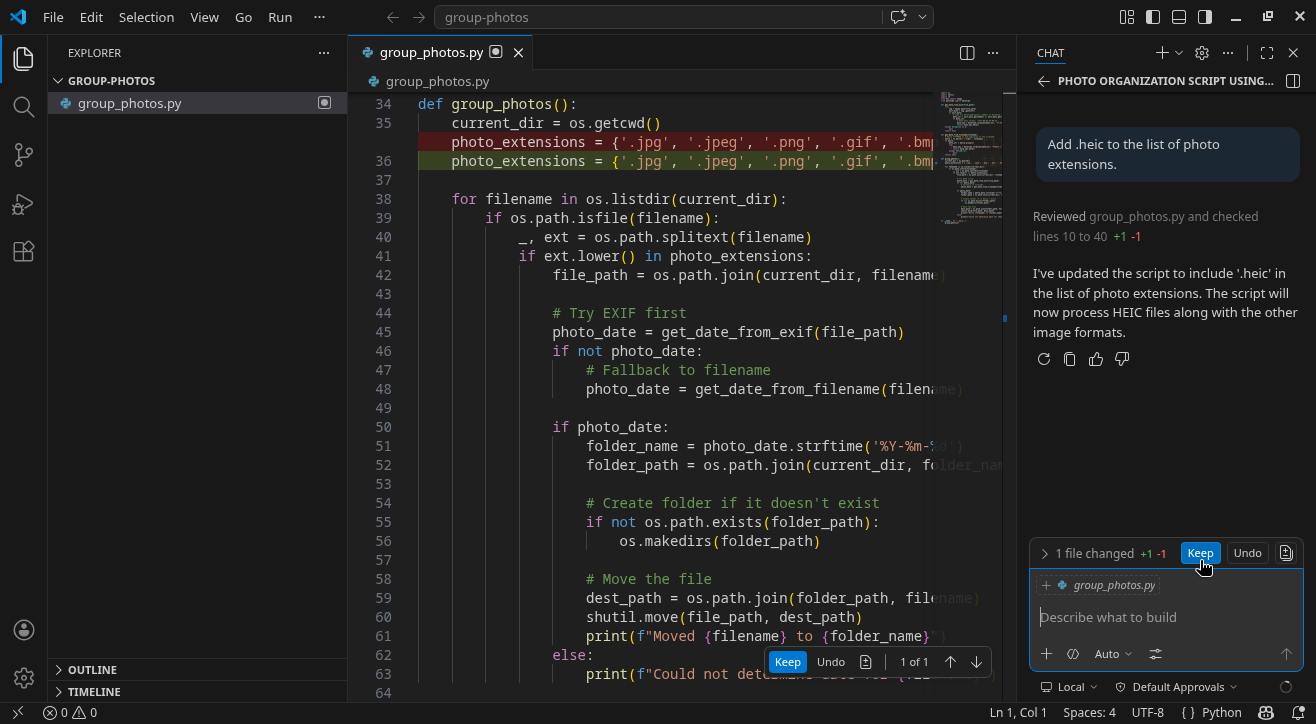
Create a symbolic link to this script in the ~/bin folder and give it executable permission so that you can invoke it from any folder:
$ ln -s ~/group-photos/group_photos.py ~/bin/group-photos
$ chmod +x ~/bin/group-photos
Install the script dependency (instruction provided by GitHub Copilot itself):
$ pip install Pillow
Note that if you are using Linux Kamarada or Manjaro, the command is different:
$ pamac install python-pillow
(actually, you probably already have this library installed on your system)
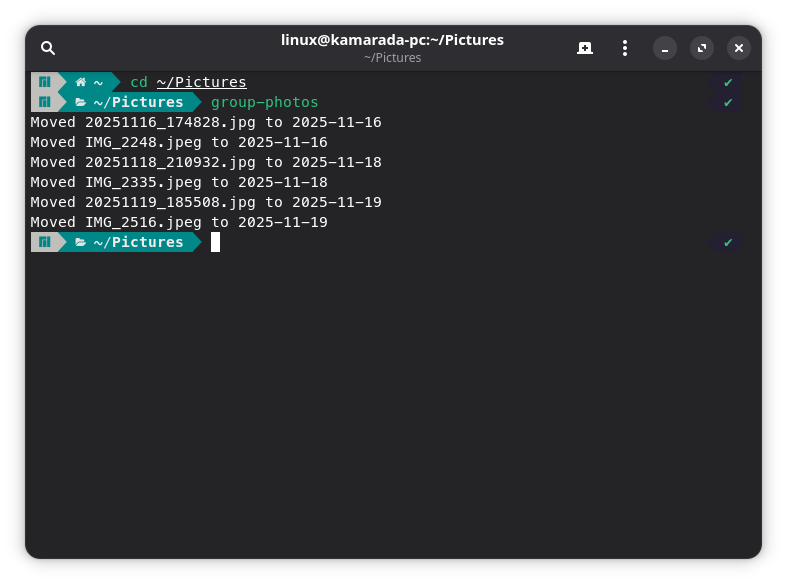
That’is it! Once that is done, we can use our script. Open a terminal window, change to the folder containing the photos to be organized and invoke the script:
$ cd ~/Pictures
$ group-photos
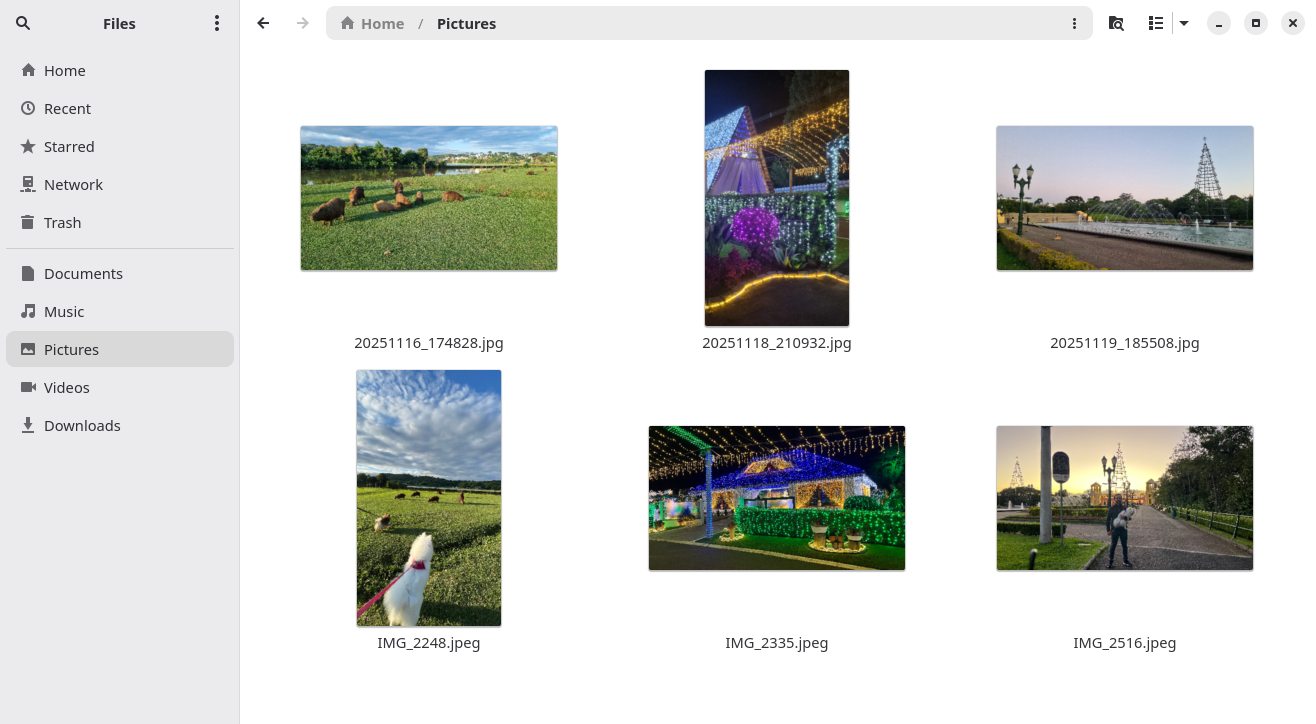
The photo folder that previously looked like this:
After the script ended, now looks like this:
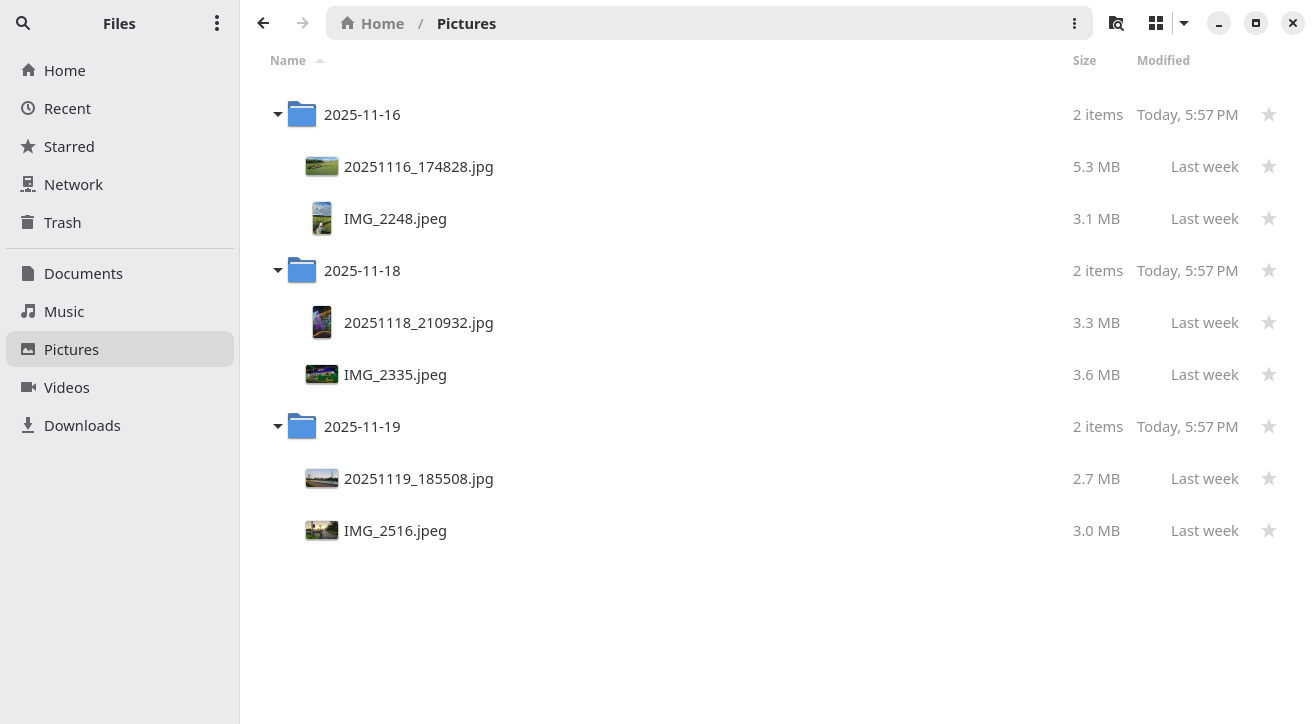
Below is the Python script generated by GitHub Copilot:
#!/usr/bin/env python3
import os
import shutil
import re
from PIL import Image
from datetime import datetime

def get_date_from_exif(file_path):
    try:
        img = Image.open(file_path)
        exif_data = img._getexif()
        if exif_data:
            # Look for DateTimeOriginal (36867) or DateTime (306)
            date_str = exif_data.get(36867) or exif_data.get(306)
            if date_str:
                # EXIF date format: 'YYYY:MM:DD HH:MM:SS'
                date_obj = datetime.strptime(date_str, '%Y:%m:%d %H:%M:%S')
                return date_obj.date()
    except Exception as e:
        pass
    return None

def get_date_from_filename(filename):
    # Match YYYYMMDD at the beginning of the filename
    match = re.match(r'(\d{8})', filename)
    if match:
        date_str = match.group(1)
        try:
            date_obj = datetime.strptime(date_str, '%Y%m%d')
            return date_obj.date()
        except ValueError:
            pass
    return None

def group_photos():
    current_dir = os.getcwd()
    photo_extensions = {'.jpg', '.jpeg', '.png', '.gif', '.bmp', '.tiff', '.tif', '.heic'}

    for filename in os.listdir(current_dir):
        if os.path.isfile(filename):
            _, ext = os.path.splitext(filename)
            if ext.lower() in photo_extensions:
                file_path = os.path.join(current_dir, filename)

                # Try EXIF first
                photo_date = get_date_from_exif(file_path)
                if not photo_date:
                    # Fallback to filename
                    photo_date = get_date_from_filename(filename)

                if photo_date:
                    folder_name = photo_date.strftime('%Y-%m-%d')
                    folder_path = os.path.join(current_dir, folder_name)

                    # Create folder if it doesn't exist
                    if not os.path.exists(folder_path):
                        os.makedirs(folder_path)

                    # Move the file
                    dest_path = os.path.join(folder_path, filename)
                    shutil.move(file_path, dest_path)
                    print(f"Moved {filename} to {folder_name}")
                else:
                    print(f"Could not determine date for {filename}")

if __name__ == "__main__":
    group_photos()
It’s impressive to see how, thanks to AI, we can talk with computers in natural human language so they can help us solve everyday problems. But note that, as a Brazilian saying goes, “even to ask, you need to know”: the answer provided by AI is only as good as our question. If I hadn’t known about the existence of EXIF metadata and/or hadn’t explained the problem to be solved very well, perhaps AI wouldn’t have generated a script that met my needs so perfectly.